
Custom translation API
If your translation service is not one of the 27 built-in engines, or you run your own, the Custom API engine lets you describe it to TransOne by hand. TransOne then calls it like any other engine.
This is the most technical page in the guide. It assumes you know how your service expects a request and what its reply looks like. If you just want to translate without any of this, one of the built-in engines or a local model will serve you better.
You set it up like any engine: open Preferences from the menu bar icon (⌘,), go to Settings ▸ Translation Services, click Add Service and choose Custom API.
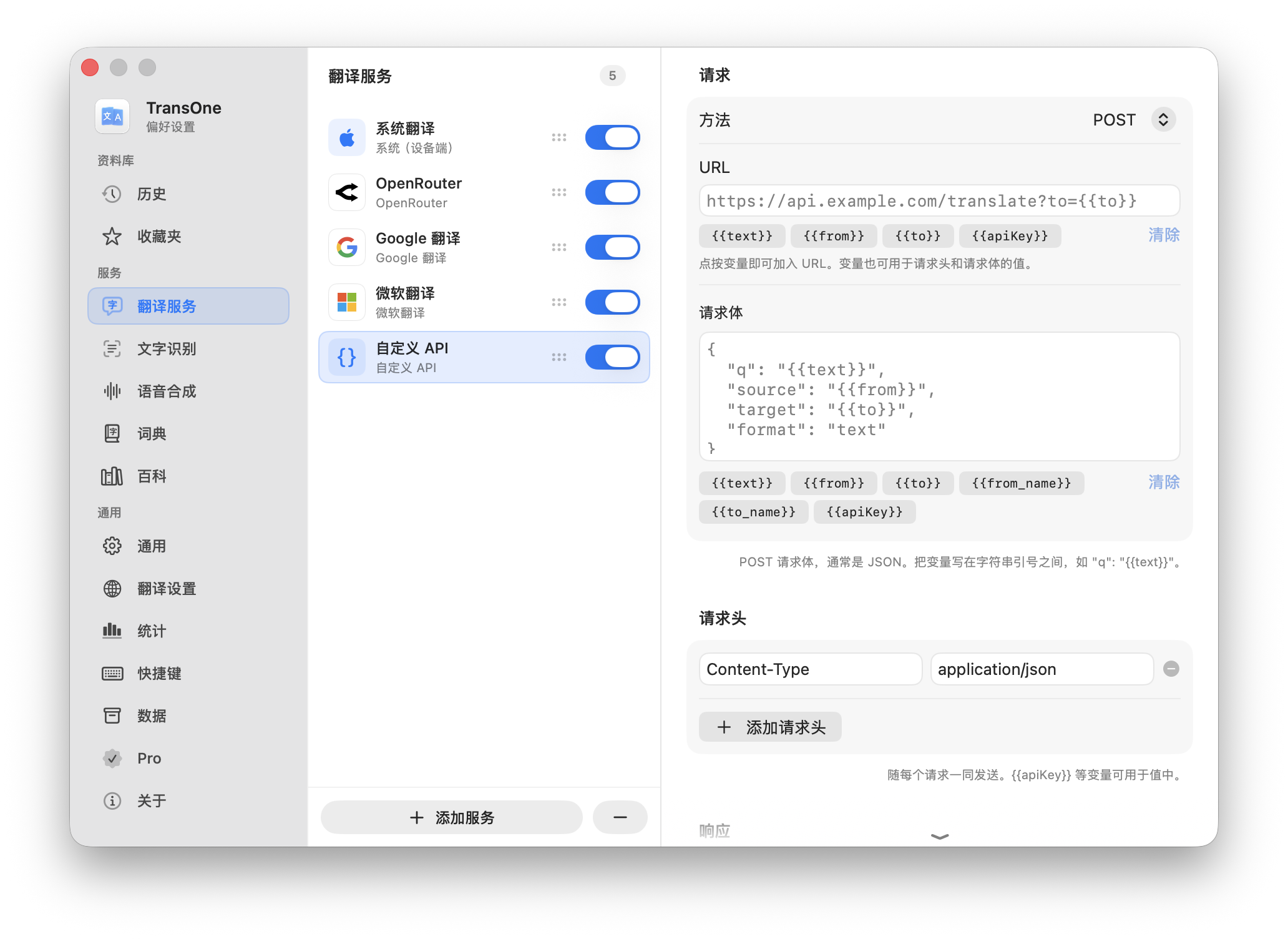
The five sections
The editor is split into five parts.
- Appearance: upload your own icon so the engine is easy to spot in the list.
- Request: how TransOne calls your service.
- Method:
GETorPOST. - URL: the address to call. It must be
https, or alocalhostaddress. - Headers: add and remove header rows, for example an
Authorizationheader. - Body: the request body. This is only used for
POST, and aPOSTmust have one.
- Method:
- Response: how TransOne reads the reply.
- Extraction: Raw Response treats the whole reply as the translated text, or JSON Field Path reads a value out of a JSON reply.
- Field Path: when using JSON Field Path, the dotted path to the translated text (explained below).
- Additional Fields: optional extra values to pull out of the reply and show under the translation, read-only (explained below).
- Languages: a table that maps TransOne's language codes to the codes your service expects, plus Auto Source (explained below).
- Credentials: your API Key. Like every engine, it is stored in the macOS Keychain.
Variables you can use
In the URL, the headers and the body, write any of these placeholders. TransOne fills them in for each translation.
| Variable | Expands to |
|---|---|
{{text}} | The text to translate. |
{{from}} | The source language code, after your Languages mapping. |
{{to}} | The target language code, after your Languages mapping. |
{{from_name}} | The source language's full name, for example English. |
{{to_name}} | The target language's full name, for example Spanish. |
{{apiKey}} | Your API Key from the Credentials section. |
Each variable is escaped correctly for where you put it: safely quoted for JSON when it is in the body, and percent-encoded when it is in the URL. You do not have to escape them yourself.
Field Path: reading the reply
Most services answer with a block of JSON, and the translated text sits somewhere inside it. Field Path is the dotted route to that text. Write each step separated by a dot, and use a number to step into a list.
For example, the path data.translations.0.text reads this reply:
{
  "data": {
    "translations": [
      { "text": "Bonjour le monde" }
    ]
  }
}
Reading it step by step: data opens the outer object, translations is the list inside it, 0 takes the first item in that list, and text is the translated string in that item. TransOne shows Bonjour le monde.
If your service replies with the translated text and nothing else, set Extraction to use the raw body instead, and no path is needed.
Additional fields alongside the translation
Some services return more than the translation: alternative wordings, a pronunciation, example sentences. Additional Fields surfaces those under the main translation, read-only. Each field is one row with three parts:
- Label: the name shown above the value, for example
Pronunciation. - Path: where to read it, written like a Field Path but with one extra power (see below).
- Text / List: whether the value is a single string (Text) or a list of strings (List).
Click Add Field to add a row, and the button at its end to remove one. A field whose path does not resolve is quietly skipped, so an occasional missing value never breaks a translation. Only the main text is ever required.
Projecting a list with *
A field Path understands everything a Field Path does (dotted keys and numeric indices), plus *, which collects the same key from every item of a list. For example, alternatives.*.text reads the text out of every entry in alternatives:
{
  "alternatives": [
    { "text": "Hi there" },
    { "text": "Hello" }
  ]
}
With that field set to List, TransOne shows both Hi there and Hello. (The main Field Path stays plain: it uses dotted keys and indices only, no *.)
Mapping languages
TransOne has its own language codes, and your service may use different ones. The Languages table lets you pair them up: on each row, TransOne's code on one side and the code your service expects on the other. When TransOne fills in {{from}} and {{to}}, it sends your service's code, not its own.
Auto Source is the value to send for the source language when the source is being detected automatically. For example, if your service treats an empty string or the word auto as "detect the language for me", put that here. It is sent as {{from}} whenever the source is on Auto Detect.
Rules
- The URL must start with
https, or point at alocalhostaddress. Plainhttpto another host is not allowed. - A POST request must have a body.
A worked example
Suppose you run a self-hosted translation server in the LibreTranslate style. It accepts a POST with a JSON body and replies with a JSON object. You could configure the Custom API like this:
Method:  POST
URL:     https://translate.example.com/translate
Headers: Content-Type: application/json
Body:
  {
    "q": "{{text}}",
    "source": "{{from}}",
    "target": "{{to}}",
    "api_key": "{{apiKey}}"
  }

Extraction:  JSON Field Path
Field Path:  translatedText
If the server answers with {"translatedText": "Hola mundo"}, the path translatedText reads Hola mundo and TransOne shows it.
INFO
This is an illustration of how the fields fit together, not a recommendation of any particular service. Fill in the values your own service documents.
Next
- Translation engines: the built-in engines and where keys live.
- Local and offline models: run a translation model on your own Mac.