
Ways to translate
There are several ways to start a translation in TransOne, and they all end up in the same translation window. Which one you reach for depends on what you are doing: typing something new, translating text you selected in another app, or working with what you already copied.
This page covers the text entry points. Translating text on screen, in a picture or a game happens through the screenshot tools, which are summarized near the bottom.
Which one should I use?
Start here. Find the row that matches what you are doing.
| I want to | Method | Shortcut | Permission |
|---|---|---|---|
| Type or paste text to translate | Input translation | ⌥A | none |
| Translate text I selected in another app | Selection translation | ⌥D | Accessibility |
| Replace the selected text with its translation | Silent selection translation | ⇧⌥D | Accessibility |
| Translate what I just copied | Clipboard translation | ⌥C | none |
| Translate by copying twice in a row | Translate on double copy | double ⌘C | none |
| Translate text in a picture or on screen | Screenshot, image and OCR | ⌥S | Screen Recording |
If selection translation does not work in the app you are in, or you would rather not grant a permission, clipboard translation ⌥C is the reliable choice that works everywhere.
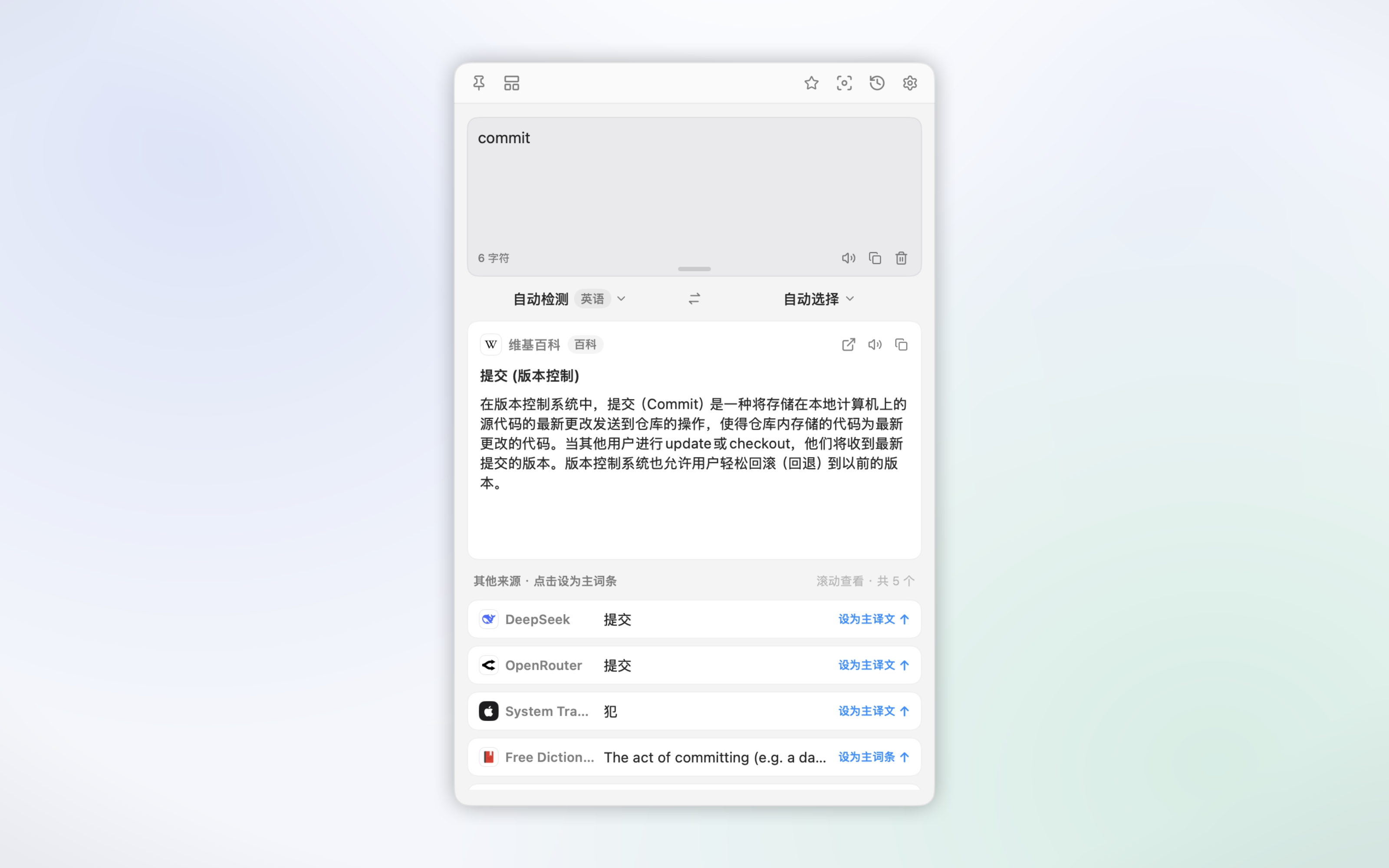
Input translation
Opens an empty translation window with the cursor already in the input box, ready for you to type or paste. This is the plain, always-works starting point, and it needs no permission.
- Press ⌥A, or click the menu bar icon and choose Input Translation.
- Type or paste your text.
- Press Return to translate. ⇧Return inserts a line break instead.
TransOne detects the language you typed and translates it into your language. Press Esc to close the window.
Selection translation
Translates the text you have highlighted in another app, without you having to copy it first. It needs the Accessibility permission, because reading the selection in another app is exactly what macOS gates behind Accessibility.
- Select some text in any app.
- Press ⌥D, or click the menu bar icon and choose Selection Translation.
- The translation window opens with your selection already translated.
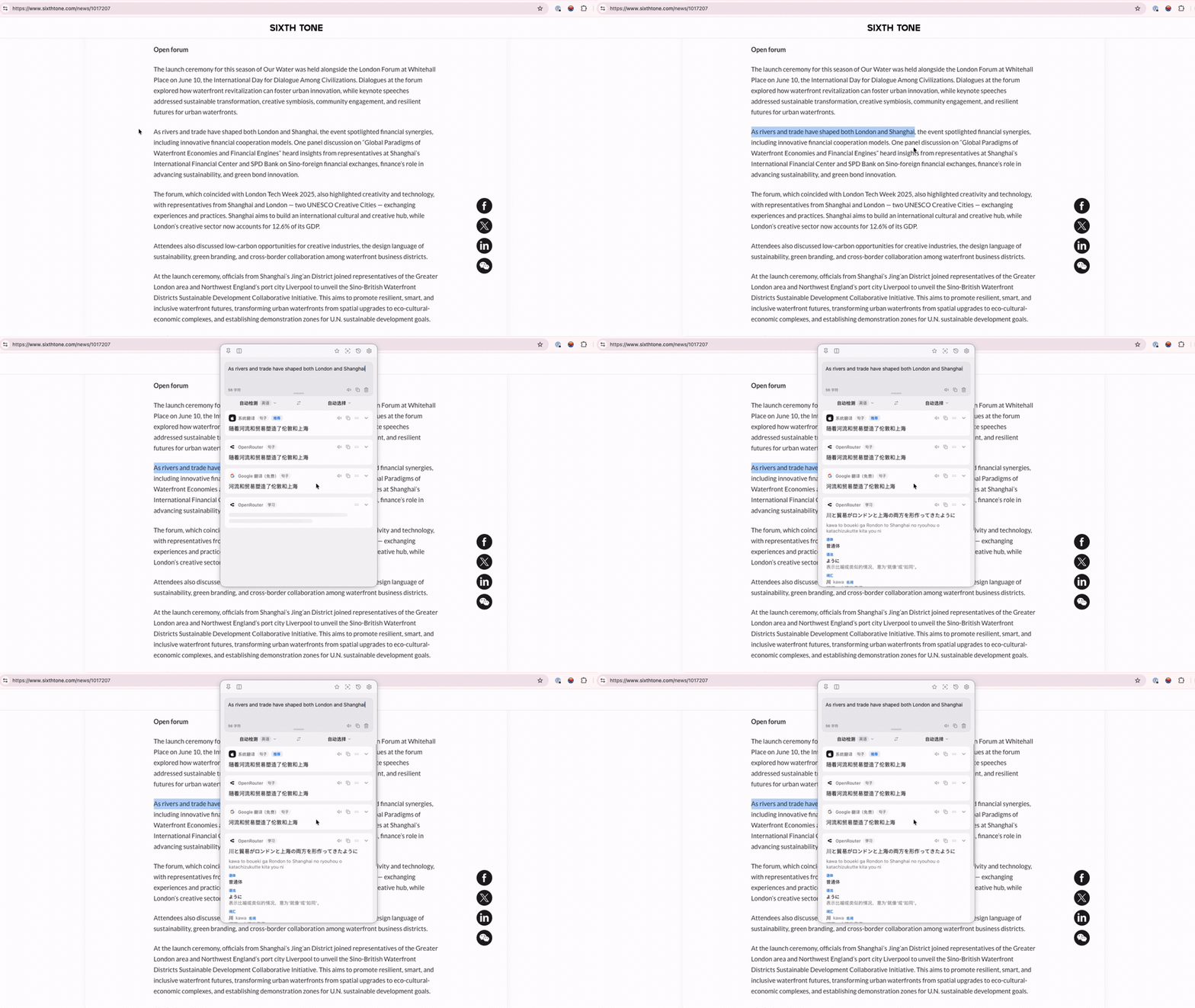
The first time you use it, TransOne opens the right page of System Settings and shows a guide card to walk you through granting Accessibility. It takes effect immediately, no restart.
If nothing is selected, ⌥D just opens an empty window, the same as ⌥A.
It does nothing in some apps
Some apps do not hand their selection to macOS, so TransOne cannot read it. This includes many Electron apps (such as some chat and note apps), terminals, and a few browsers. When ⌥D does nothing there, use one of these instead:
- Clipboard translation ⌥C, copy the text first.
- Silent selection translation ⇧⌥D, which pastes and so works in more places.
- Translate on double copy, or PopClip.
Silent selection translation
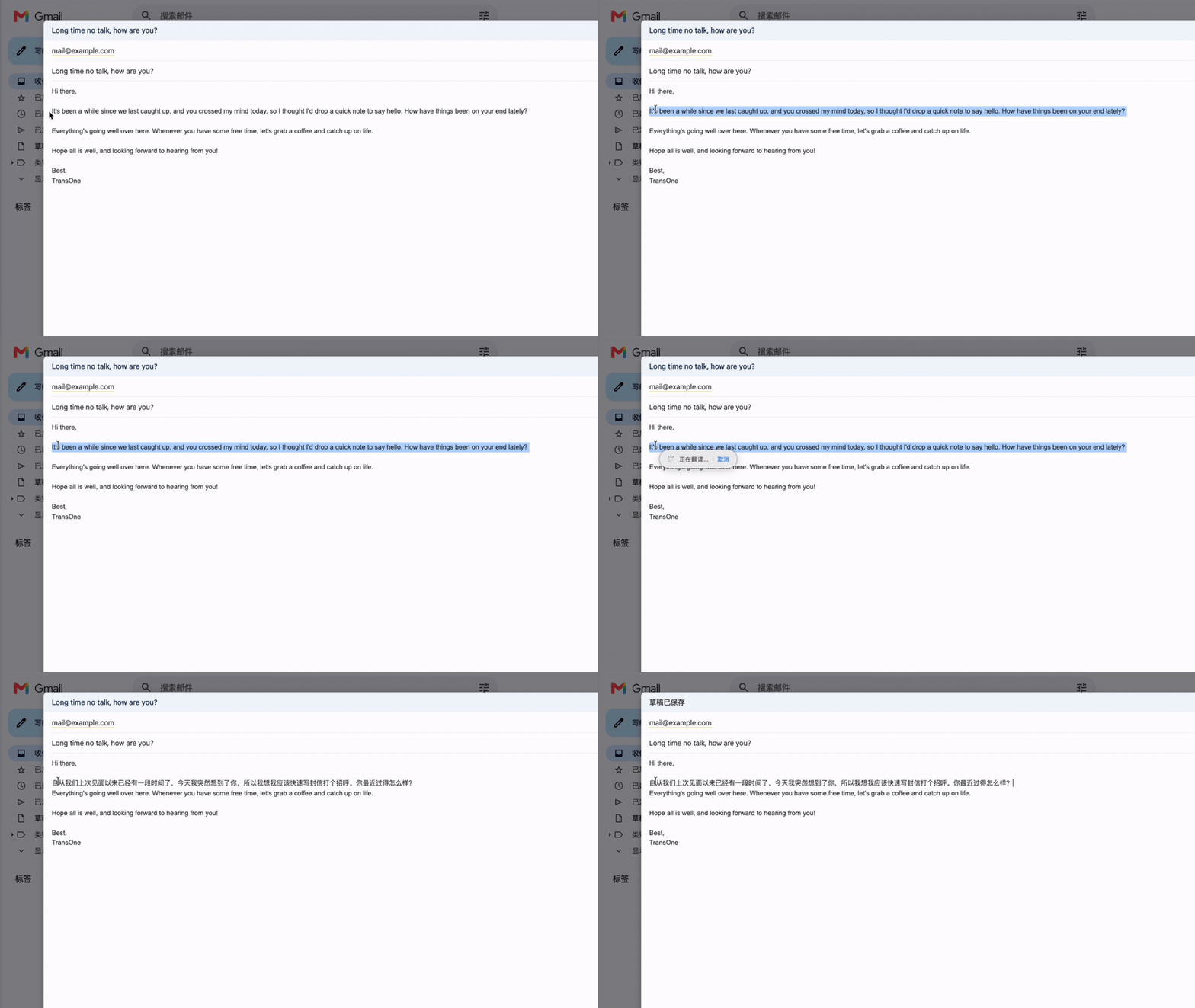
Replaces the selected text in place with its translation, without opening the translation window at all. Good for quickly rewriting a sentence in a document or a message you are drafting. It needs the Accessibility permission.
- Select some text in any app.
- Press ⇧⌥D, or choose Silent Selection Translation from the menu.
- The selected text is replaced by its translation where it stands.
A few things worth knowing:
- It uses only your highest-priority enabled engine, not several at once, because there is no window to compare results in. Reorder your engines in Translation Services to choose which one that is.
- It writes the translation by pasting it over the selection, which is why it works in more places than plain selection translation, including WebKit views, Electron apps and terminals.
- A small floating indicator appears after a moment, with a Cancel button.
- If nothing comes back, it gives up after 40 seconds.
Clipboard translation
Translates whatever text you last copied. This is the most reliable way to translate, because copying works in every app, and it needs no permission at all.
- Copy some text (⌘C) in any app.
- Press ⌥C, or choose Clipboard Translation from the menu.
- The translation window opens with the copied text already translated.
When selection translation does nothing because an app will not share its selection, this is the answer: copy the text, then press ⌥C.
Translate on double copy
A gesture that translates the copied text when you press ⌘C twice quickly. It needs no permission and works in every app, including the Electron apps and terminals where selection translation fails.
It is off by default. Turn it on in Settings ▸ Shortcuts ▸ Quick Actions, where it is labeled Translate on double copy with the caption "Press ⌘C twice quickly to translate the copied text."
Why it is off by default
Some apps write several formats to the clipboard for a single copy, and clipboard managers or sync tools can write again right afterward. Either can look like a second copy and translate when you did not mean to. It is off so it never surprises you. Turn it on if the gesture suits how you work.
Once it is on:
- The two ⌘C presses need to be more than about 0.2 seconds apart. Closer than that and macOS reads them as one press, so nothing happens. If it misses, press slightly slower.
- Copying an image or a file does nothing. Only text triggers it.
It never reads other apps' contents
The gesture only watches the clipboard's change counter, a number macOS bumps each time the clipboard changes. It notices that the clipboard changed twice quickly, then translates the text you copied. It does not read what you do in other apps.
Screenshot, image and OCR
Three tools translate or read text on your screen: in a picture, a game, a video, or a PDF that will not let you select. They capture a region you draw and need the Screen Recording permission. They have their own page: Screenshot and image translation.
| Tool | Shortcut | What it does |
|---|---|---|
| Screenshot Translation | ⌥S | Draw a box, read the text inside, translate it in the window. |
| Screenshot OCR | ⇧⌥S | Draw a box, read the text into the input box, do not translate. |
| Image Translation | ⌥T | Draw a box, draw the translation over the original, in place. |
Translate from anywhere else
You can also start a translation from outside TransOne entirely:
- PopClip, the small bar that pops up when you select text, can send the selection to TransOne with one click.
- Raycast can run a Quicklink that sends your selection to TransOne.
- A
transone://link opens the translation window with any text, already translated, from anywhere that can open a link.
These are covered in PopClip, Raycast and Text links.
Next
- Translation engines, what does the translating and how to add more.
- Permissions, what Accessibility is for and why nothing is asked at launch.
- Troubleshooting, when an entry point does nothing.