
Keyboard shortcuts
A global shortcut is a key combination that works anywhere on your Mac, no matter which app is in front, so you can translate without first switching to TransOne.
New to these symbols? ⌥ is the Option key (also labeled Alt), ⇧ is Shift, ⌘ is Command, and ⌃ is Control. So ⇧⌥D means hold Shift and Option together, then press D.
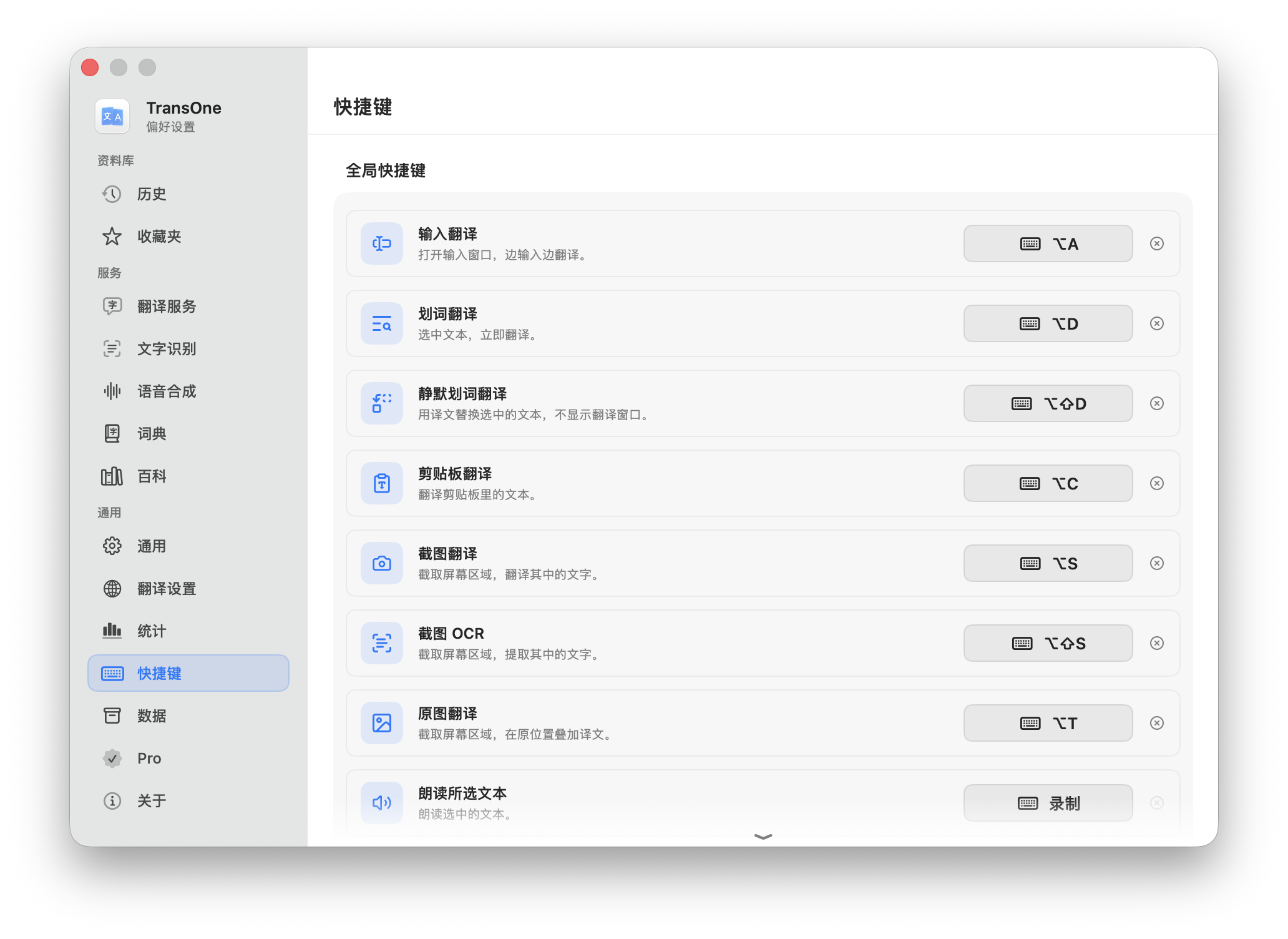
Every action and its shortcut
TransOne has ten actions. Seven come with a shortcut out of the box. The other three ship with no shortcut, so you must record one before the keyboard can trigger them. They are still there in the menu bar menu and you can click them anytime.
| Action | Default | What it does | Permission |
|---|---|---|---|
| Input Translation | ⌥A | Opens an empty translation window to type or paste into. | none |
| Selection Translation | ⌥D | Translates the text you selected in another app. | Accessibility |
| Silent Selection Translation | ⇧⌥D | Replaces the selected text in place with its translation. | Accessibility |
| Clipboard Translation | ⌥C | Translates the text you last copied. | none |
| Screenshot Translation | ⌥S | Draw a box on screen, read the text, translate it. | Screen Recording |
| Screenshot OCR | ⇧⌥S | Draw a box, read the text into the input box, no translation. | Screen Recording |
| Image Translation | ⌥T | Draw a box, draw the translation over the original. | Screen Recording |
| Polish Selection | none | Rewrites the selected text in the same language. | Accessibility |
| Speak Selection | none | Reads the selected text aloud. | Accessibility |
| Speak Clipboard | none | Reads the copied text aloud. | none |
The last three have no shortcut
Polish Selection, Speak Selection and Speak Clipboard ship without a shortcut on purpose. To trigger them from the keyboard, record one in Settings ▸ Shortcuts as described below. Until then, open the menu bar menu and click them.
Change a shortcut
- Click the menu bar icon and choose Preferences… (or press ⌘,).
- Go to Settings ▸ Shortcuts.
- Find the action's row. Each row has an icon, the action's name, a short description, a recorder, and a clear button.
- Click the recorder, then press the key combination you want. It is saved as you press it.
- To remove a shortcut, click the clear button on its row. The action stays in the menu, it just has no key combination.
Use Defaults and Clear All
Two buttons below the shortcut rows reset everything at once:
- Use Defaults restores the seven factory shortcuts (⌥A, ⌥D, ⇧⌥D, ⌥C, ⌥S, ⇧⌥S, ⌥T) and clears the three that ship without one (Polish Selection, Speak Selection, Speak Clipboard). A line on the page reads "Suggested: ⌥A, ⌥D, ⇧⌥D, ⌥C, ⌥S, ⇧⌥S, ⌥T".
- Clear All removes every shortcut, including the seven defaults. Every action is then click-only from the menu until you record shortcuts again.
Quick Actions
Below the ten actions, the Quick Actions section holds three extra ways to translate that are not tied to a single key combination:
- Translate on double copy: press ⌘C twice quickly to translate the copied text. Off by default, needs no permission, and works in every app. See Translate on double copy for how it behaves.
- Translate from PopClip: adds a TransOne button to PopClip, the small bar that appears when you select text. Its Install in PopClip button sets this up in one click. See PopClip.
- Translate from Raycast: adds a Raycast Quicklink that sends your selection to TransOne. Its Add to Raycast button hands the ready-made link to Raycast in one click. See Raycast.
When a shortcut does nothing
If pressing a shortcut has no effect, the usual cause is that another app already owns that combination. TransOne does not detect these conflicts and will let you record a combination another app is using. The fix is to record a different one in Settings ▸ Shortcuts.
A second cause: the selection-based actions (⌥D, ⇧⌥D, Polish Selection, Speak Selection) quietly need the Accessibility permission. If you have not granted it, they do nothing rather than warn you each time. Grant Accessibility, or use a zero-permission entry point like Clipboard Translation ⌥C.
For more, see Troubleshooting.
Next
- Ways to translate, what each shortcut actually opens.
- Permissions, why some actions need Accessibility or Screen Recording.