
PopClip
PopClip is one of two ways to send text to TransOne without touching macOS permissions at all. The other is a plain text link.
What PopClip is
PopClip is a small, separate app made by another developer. When you select text in almost any app, PopClip shows a little bar of buttons just above the selection. You buy it on its own. TransOne only provides an action you can add to it.
Why use it with TransOne
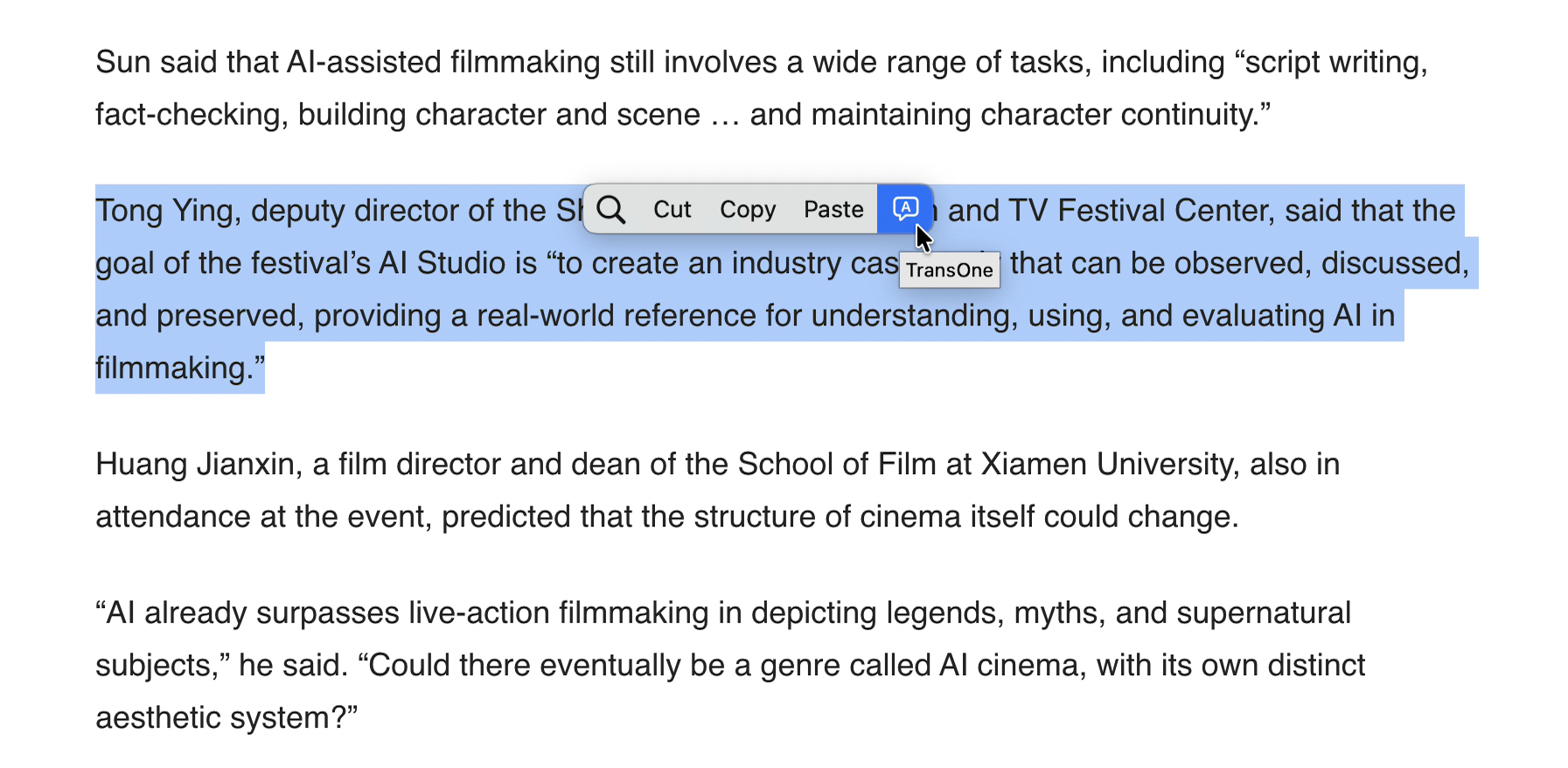
Selection Translation reads your selection through the Accessibility permission, and a few apps do not let it. A PopClip action sidesteps that entirely: it needs no Accessibility permission, and it works everywhere PopClip works. Select text, click the TransOne button in the PopClip bar, and the translation window opens with that text, already translated.
Install the TransOne action
The easy way, from inside TransOne:
- Open Preferences from the menu bar icon (⌘,).
- Go to Settings ▸ Shortcuts.
- Under Quick Actions, find Translate from PopClip, and click Install in PopClip.
- PopClip asks you to confirm. Accept it.
The manual way, if you prefer to do it by hand:
- Copy the snippet below and paste it into any text field (a note, a search box, anywhere you can type).
- Select the text you just pasted.
- In the PopClip bar that appears, click Install TransOne.
# popclip
name: TransOne
icon: symbol:character.bubble
url: transone://translate?text=***
INFO
PopClip installs an action from the text you have selected, not from the clipboard. That is why the manual way asks you to paste the snippet and then select it, rather than just copy it.
Next
- Raycast runs a Quicklink that translates your selection.
- Text links hand text to TransOne from scripts and other tools.
- Ways to translate covers the built-in shortcuts and gestures.