
The menu bar and the translation window
TransOne has just two faces: a small menu that drops down from its menu bar icon, and one translation window that every feature shares. This page names every control in both, so the rest of the guide can point back here.
The menu bar icon
The menu bar is the strip of small icons along the top right of your screen, next to the clock. TransOne lives there and nowhere else: no main window, no icon in the Dock. Click the icon to open its menu.
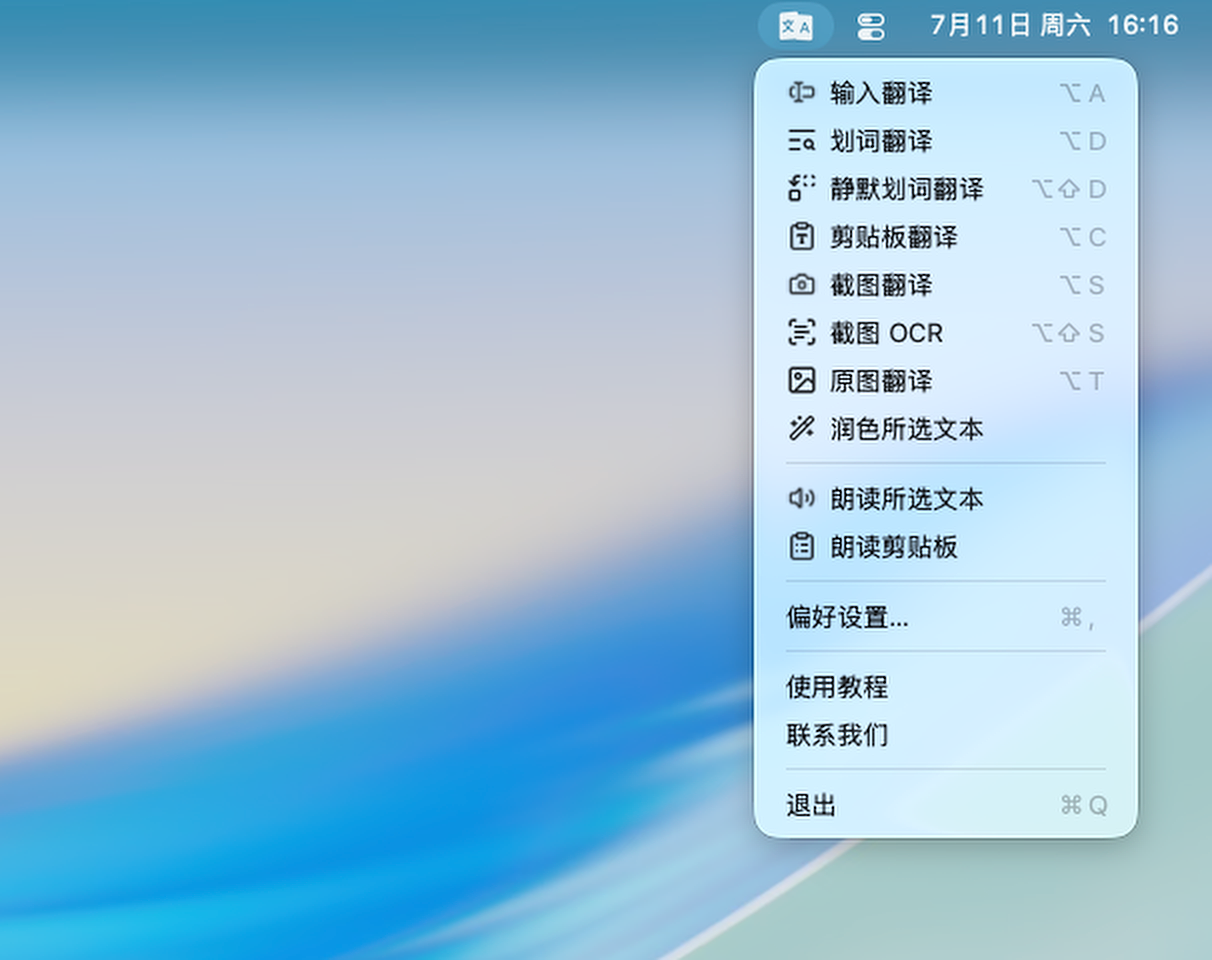
The menu holds fourteen items, in this order:
| Item | Shortcut | What it does |
|---|---|---|
| Input Translation | ⌥A | Opens an empty translation window to type or paste into. |
| Selection Translation | ⌥D | Translates the text you have selected in another app. |
| Silent Selection Translation | ⇧⌥D | Replaces the selected text in place, with no window. |
| Clipboard Translation | ⌥C | Translates whatever text you last copied. |
| Screenshot Translation | ⌥S | Draw a box on screen and translate the text inside it. |
| Screenshot OCR | ⇧⌥S | Draw a box and copy out the text without translating. |
| Image Translation | ⌥T | Draw a box and lay the translation over the original. |
| Polish Selection | none | Rewrites your selected text in the same language. |
| Speak Selection | none | Reads your selected text aloud. |
| Speak Clipboard | none | Reads whatever you last copied aloud. |
| Preferences… | ⌘, | Opens the TransOne Settings window. |
| Usage Guide | none | Opens this guide in your browser. |
| Contact Us | none | Opens the support page in your browser. |
| Quit | ⌘Q | Quits TransOne. |
The first seven items ship with the shortcuts shown. Polish, the two Speak items have none by default; you can record one in Keyboard shortcuts.
Shortcuts pause while the menu is open
While the menu is dropped down, TransOne's global shortcuts are suspended, so the keys you see next to each item act as menu shortcuts and nothing fires twice. Close the menu and the global shortcuts work again.
You do not have to keep the default icon. In Settings ▸ General you can swap in your own image or remove the icon entirely. See the Settings explained for the details.
The translation window
Everything that shows a translation shows it in one window. Whether you typed into it, translated a selection or captured the screen, it is the same window reused, so it always looks and behaves the same.
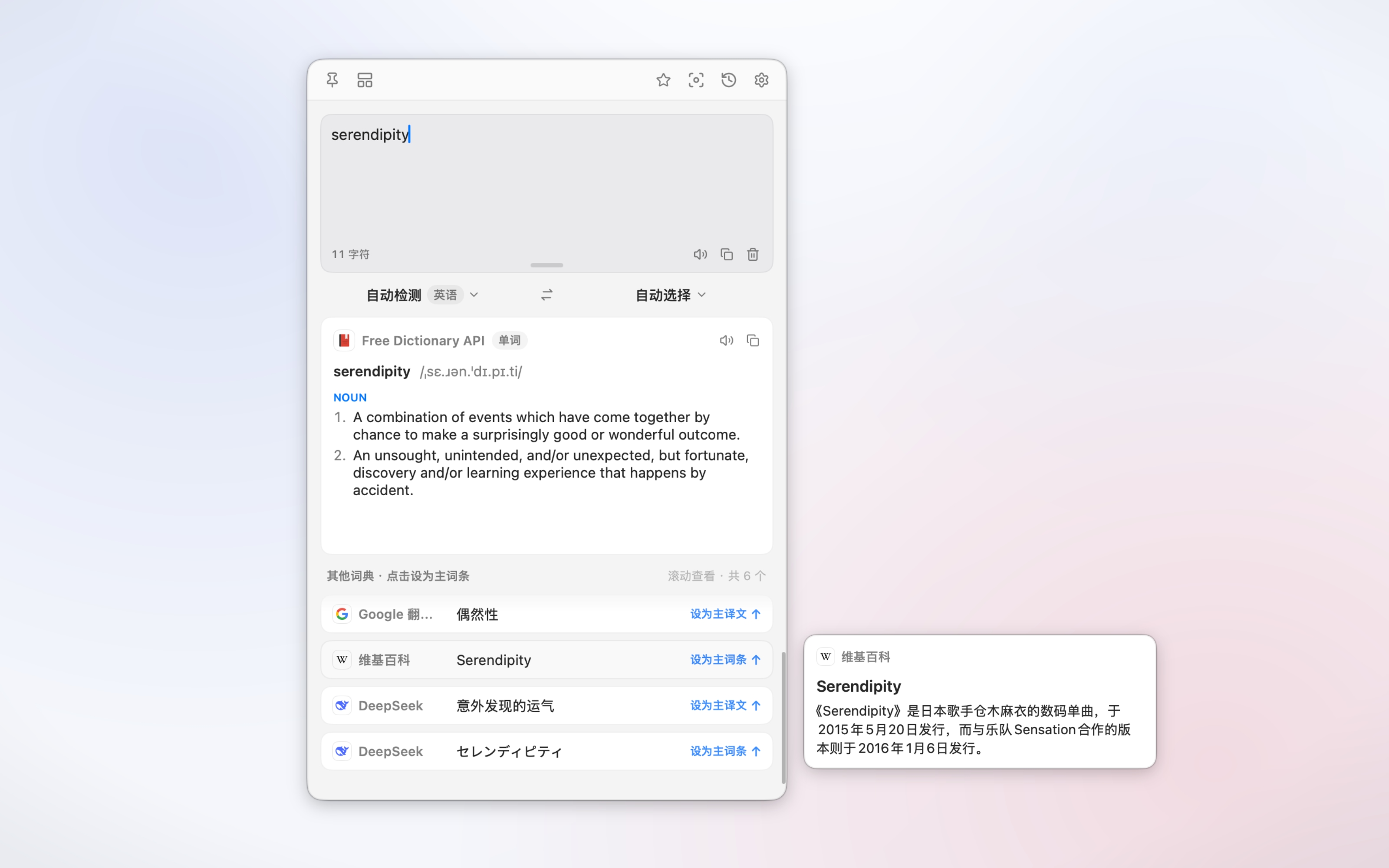
The window floats above your work and takes keyboard focus without switching apps, the way Spotlight does. Your current app stays in front behind it, so you can translate without losing your place. From top to bottom it has four parts: a toolbar, the input box, the language bar and the results.
The toolbar
The toolbar runs across the top of the window. Its buttons, from the left:
| Button | What it does |
|---|---|
| Pin | Keeps the window open when you click elsewhere (see below). |
| View mode | Switches the results between Focus and Compare. |
| Favorite (star) | Saves the current result to your Favorites. |
| Screenshot | Closes the window and starts a screenshot translation. |
| History | Drops down your recent translations right here (see below). |
| Settings | Opens Preferences. |
To move the window, drag it by any empty part of the toolbar. The pin and the view mode sit on the left; favorite, screenshot, history and settings sit on the right.
Recent translations
Click History in the toolbar and a short list of your most recent translations drops down inside the window, without closing it or switching to another window. Each row shows the source text and a one-line preview of its result. Click one to bring that translation back in place: it shows the result exactly as it was saved, with no re-translating, and the language bar returns to the pair it used.
At the bottom of the list, View All History… opens Settings ▸ History, where the full, searchable list lives. See History and favorites for everything TransOne keeps.
The input box
Below the toolbar is the box you type into. It is three lines tall to begin with, and you can drag the small handle at the bottom center to make it taller. The height you set is remembered next time.
- Return translates what you typed.
- ⇧Return inserts a line break instead of translating.
- Esc closes the window.
There is no Translate button; Return does the job. Along the bottom of the box, a footer shows the character count on the left and three actions on the right: Copy, Speak and Clear.
The language bar
Under the input box sits a row with the source language on the left, a round swap button in the middle, and the target language on the right.
- The source starts on Auto Detect and shows the language it found as a small pill.
- The target menu's first item is Auto Select, which picks your first or second language depending on what the source turned out to be.
- The swap button rotates and swaps the two sides. It declines, with a short reminder, while the source is still being detected or when both sides are the same language.
These choices last for one translation
Any language you pick here applies only to the translation in front of you. Reopen the window and it resets to your defaults. To change the lasting defaults, open Settings ▸ Translation Settings.
The result area
Before you translate anything, the result area shows an empty state: a line that reads "Translations appear here", a subtitle about auto-detecting words and sentences, and a row of the engines that will be used.
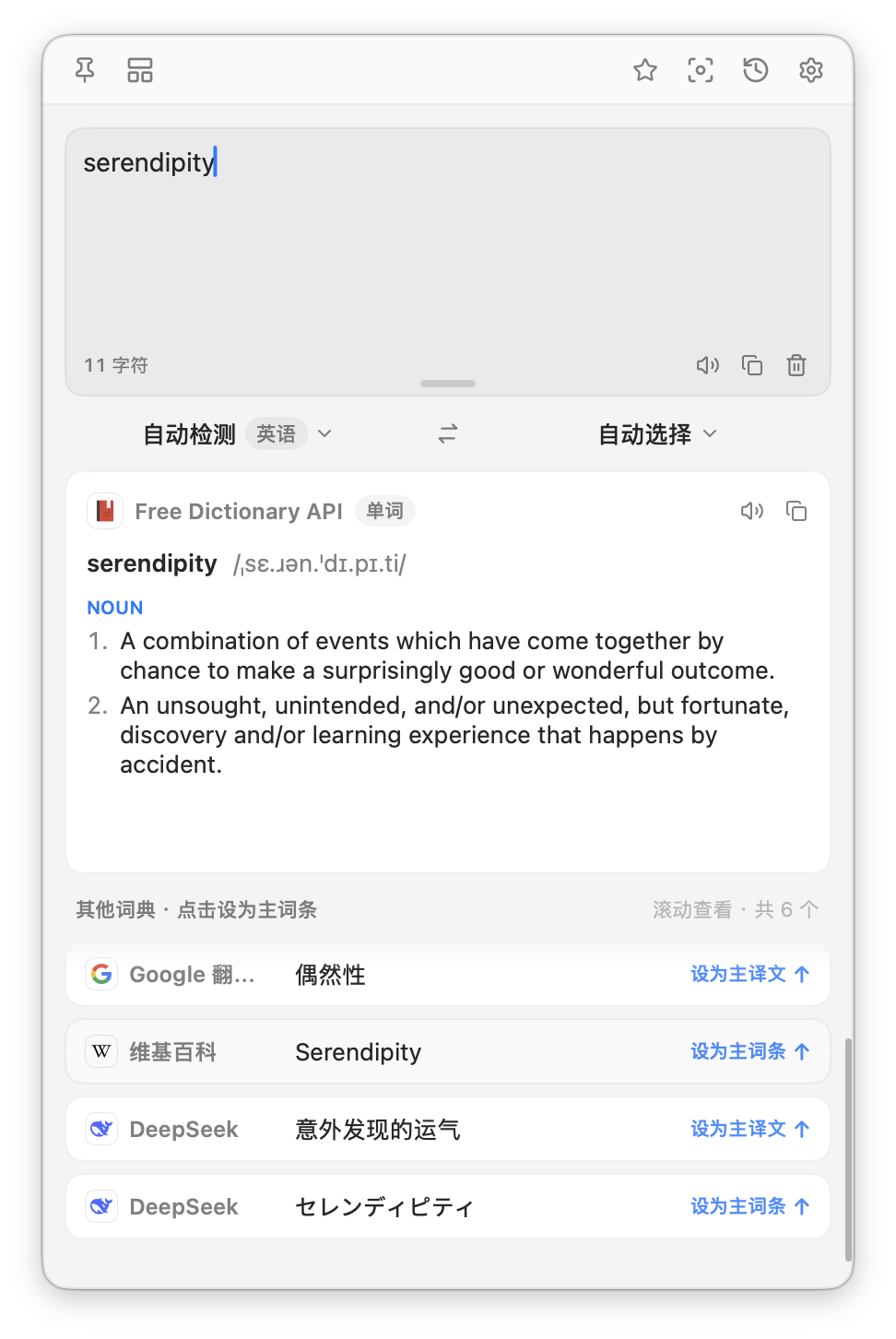
Once you translate, the results appear in one of two layouts. Switch between them with the view mode button in the toolbar, or in Settings ▸ Translation Settings ▸ Result Display. The two stay in sync, and Focus is the default.
Focus mode
One engine's translation fills a large primary card at the top, marked with a Recommended pill. The other engines follow as a flat "Other engines" list, each one a single truncated row. Click any row to promote that engine into the primary card.
Compare mode
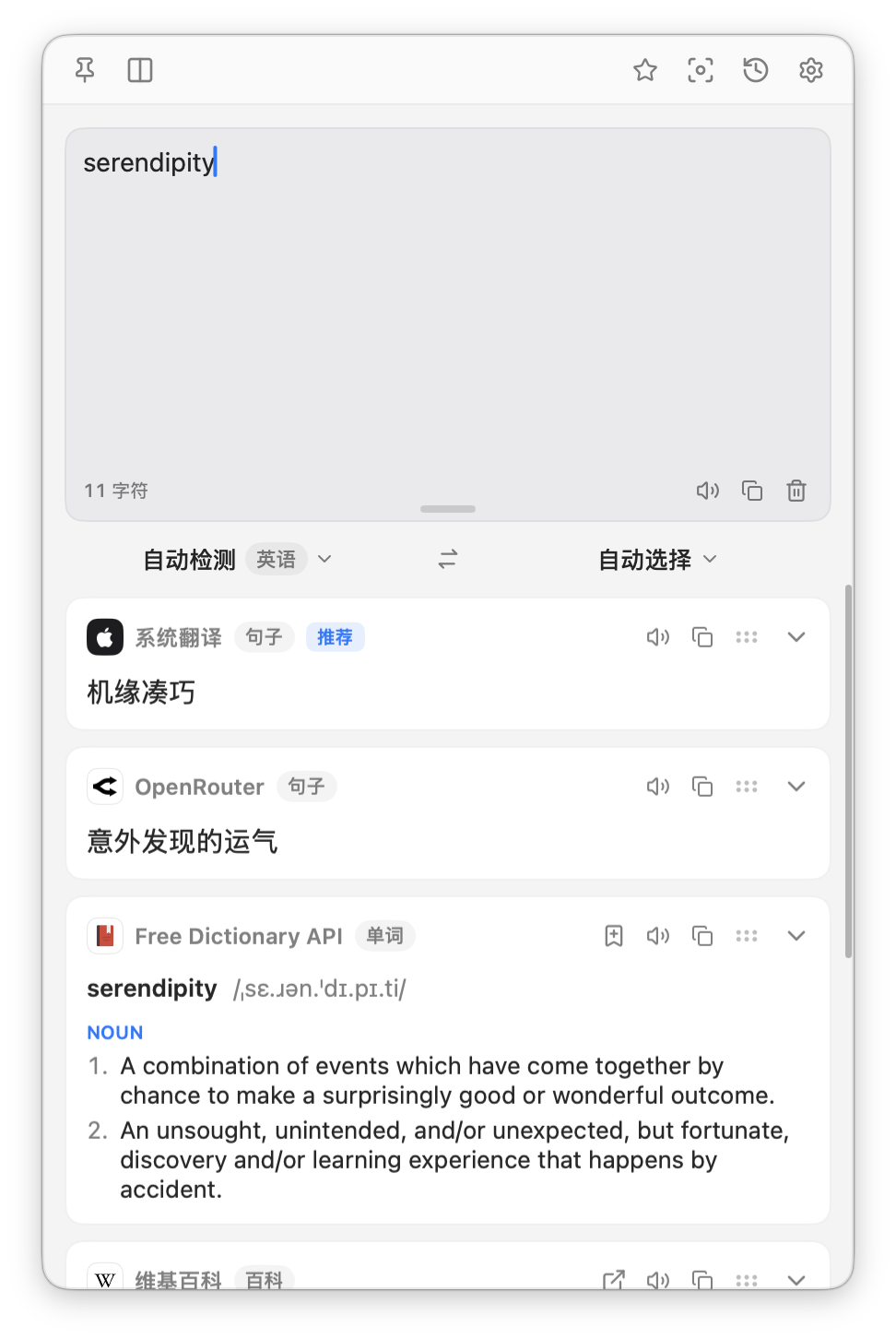
Every engine gets its own full-width card with the complete text, in a scrolling list, nothing truncated. You can:
- Collapse a card with the chevron in its header. Hold ⌥ and click a chevron to collapse or expand every card at once.
- Drag cards to reorder them.
More than a translation
A single translation can bring back more than one kind of card. Alongside the translation you may see a dictionary card when you entered a single word, an encyclopedia card for a short term, and a study card if you are learning a third language. Each has its own Copy and Speak buttons.
How the window closes
By default the window closes as soon as it loses focus: press Esc, click another app, or click the desktop. Picking a language from the source or target menus does not close it.
Click Pin in the toolbar to keep it open while you work elsewhere. Pinned, it stays put when you click away; Esc still closes it.
Next
- Ways to translate, every entry point in detail.
- Permissions, what ⌥D and ⌥S ask for and why.
- Settings explained, every page of the Settings window.