
Dictionary
Translating a word tells you what it means in another language. A dictionary tells you what it means. TransOne gives you both. When you enter a single word or a short phrase, a dictionary card appears above the translation, with real definitions, phonetics and example sentences, not just a translation.
You do not turn this on. It happens on its own whenever what you typed looks like a word to look up rather than a sentence to translate.
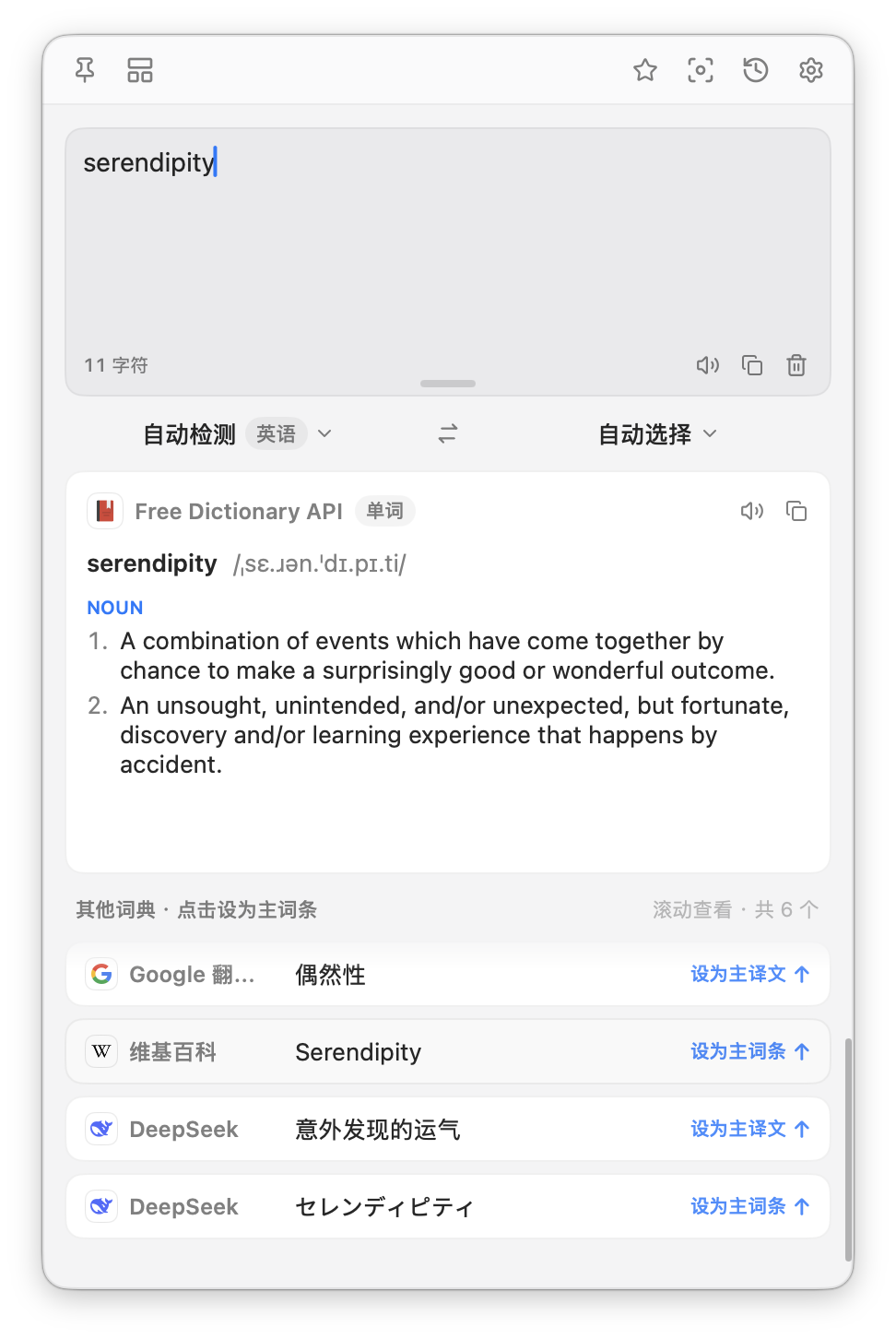
When the card appears
The card appears only for a single word or a short phrase. It never appears for a sentence. TransOne decides this for you, using a simple rule: text counts as a sentence, and gets no card, when any of these is true.
- It is longer than 40 characters.
- It contains a line break.
- It ends with sentence punctuation (like a full stop or a question mark).
- It contains a verb.
- It runs longer than three words.
So apple and New York City get a dictionary card, while How are you? does not. If nothing matches, or no dictionary finds the word, the card just does not show up. There is no error and nothing to dismiss.
What the card shows
- The word itself.
- Its phonetic spelling, when the source has one.
- Definitions grouped by part of speech (noun, verb, and so on) and numbered within each group.
- Example sentences under the definitions, when available.
- Copy, which copies the card's text, and Speak, which reads the word out loud. See Read aloud for how the voice is chosen.
If you keep a vocabulary app, TransOne can also send the words you look up to it for review later. See Wordbook sync.
Dictionary sources
Turn dictionaries on and off in Settings ▸ Dictionary (open Preferences from the menu bar icon, then choose Dictionary in the sidebar). Several can be on at once, and each is consulted for every lookup. Drag them to reorder.
| Source | Needs a key | Notes |
|---|---|---|
| Free Dictionary | No | On by default. Best for English. |
| Wiktionary | No | Many languages. |
| ECDICT | No | Offline, English to Chinese. Needs a one-time download (see below). |
| Youdao | App Key, App Secret | English and Chinese. |
| Merriam-Webster | API Key | English only. Free for non-commercial use. |
| OpenAI-Compatible | Base URL, Model, API Key | Definitions written by an AI model, in any language. Set the same base URL, model and key as your OpenAI-Compatible translation engine. |
Use ECDICT offline
ECDICT is an English-to-Chinese dictionary that runs entirely on your Mac, with no key and no internet. It is the only dictionary that needs a one-time download before it works.
- Open Preferences from the menu bar icon and go to Settings ▸ Dictionary.
- Turn on ECDICT.
- Open its settings. In the Offline Dictionary section you will see a status line and a Download button.
- Click Download. The download is about 210 MB and expands to roughly 850 MB on your disk.
- Wait for it to finish. The status line updates when it is installed.
Until the database is installed, ECDICT finds nothing. Once it is installed, it works offline forever.
TIP
You can close the settings window while it downloads. The download picks up where it left off when you come back. You can also Cancel a download in progress, and Delete the database later to free up space.
INFO
The ECDICT database is not included in settings backups, because it is large and easy to download again. If you restore a backup on another Mac, download ECDICT again there.
AI definitions
The OpenAI-Compatible dictionary source is different from the others: instead of looking a word up in a fixed dictionary, it asks an AI model to write the definition, and it can do so in any language. To use it, enter a Base URL, a Model and an API Key, the same details you use for an AI translation engine. This is a good fit for languages the other dictionaries do not cover well.
Related
- Encyclopedia for names, places and terms.
- Read aloud to hear a word pronounced.
- Wordbook sync to save the words you look up.