
Screenshot and image translation
Some text on your screen cannot be selected: words baked into a picture, subtitles in a video, the interface of a game, a scanned PDF, or an app that will not let you highlight anything. TransOne can still read it. You draw a box around the region, and TransOne looks at the pixels inside it.
There are three ways to do this, and they differ only in what happens after the capture:
- Screenshot Translation (⌥S) reads the text and translates it.
- Screenshot OCR (⇧⌥S) reads the text into the input box but does not translate it. This is how you copy text out of a picture.
- Image Translation (⌥T) draws the translation on top of the original, right where the text was.
Before you start
All three actions need the Screen Recording permission. This lets TransOne read the pixels in the region you draw. It only ever captures the region you draw, and only when you ask. See Permissions for how to grant it.
WARNING
Screen Recording only takes effect after you quit and reopen TransOne. If the screenshot actions still say the permission is missing right after you granted it, use the Quit & Reopen button on the permission card. You only do this once.
The recognition itself is done by a text-recognition engine. The built-in Apple engine works offline and needs no setup; you can switch to a cloud engine on the Text recognition page if it struggles with your material.
The capture overlay
All three actions start the same way: the screen turns into a capture overlay so you can pick a region.
- The screen is not dimmed. Only the region you select is tinted light blue, so you can still see everything around it clearly.
- Two ways to select a region:
- Drag a rectangle around the text.
- Hover over a window and click to capture that whole window.
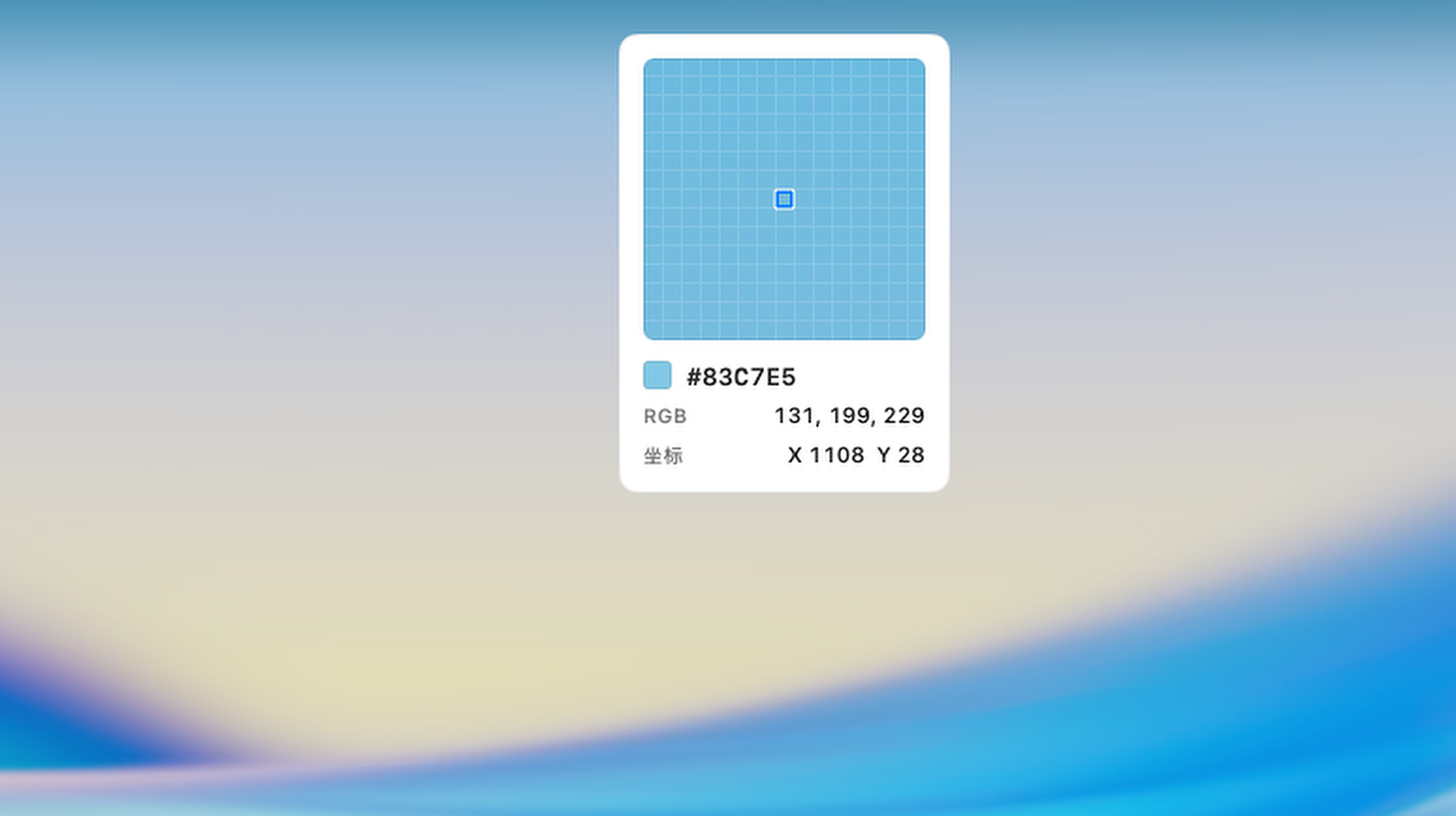
- A magnifier follows your cursor. It shows the zoomed pixels under the pointer, the hex color and RGB values of the exact pixel, and either the cursor coordinates or, while you are dragging, the size of your selection.
- A hint card in the lower left shows esc and a Cancel button.
- To cancel, press Esc or click on an empty part of the desktop.
- It works across several displays.
Screenshot translation
Press ⌥S, draw a box around the text, and TransOne recognizes it and translates it automatically. The result opens in the translation window, the same window every other action uses, so you can switch engines, copy the result, hear it read aloud, or favorite it there.
Use this when you want the meaning of text you cannot select: a foreign menu, a sign in a photo, a line of dialogue in a game.
Screenshot OCR
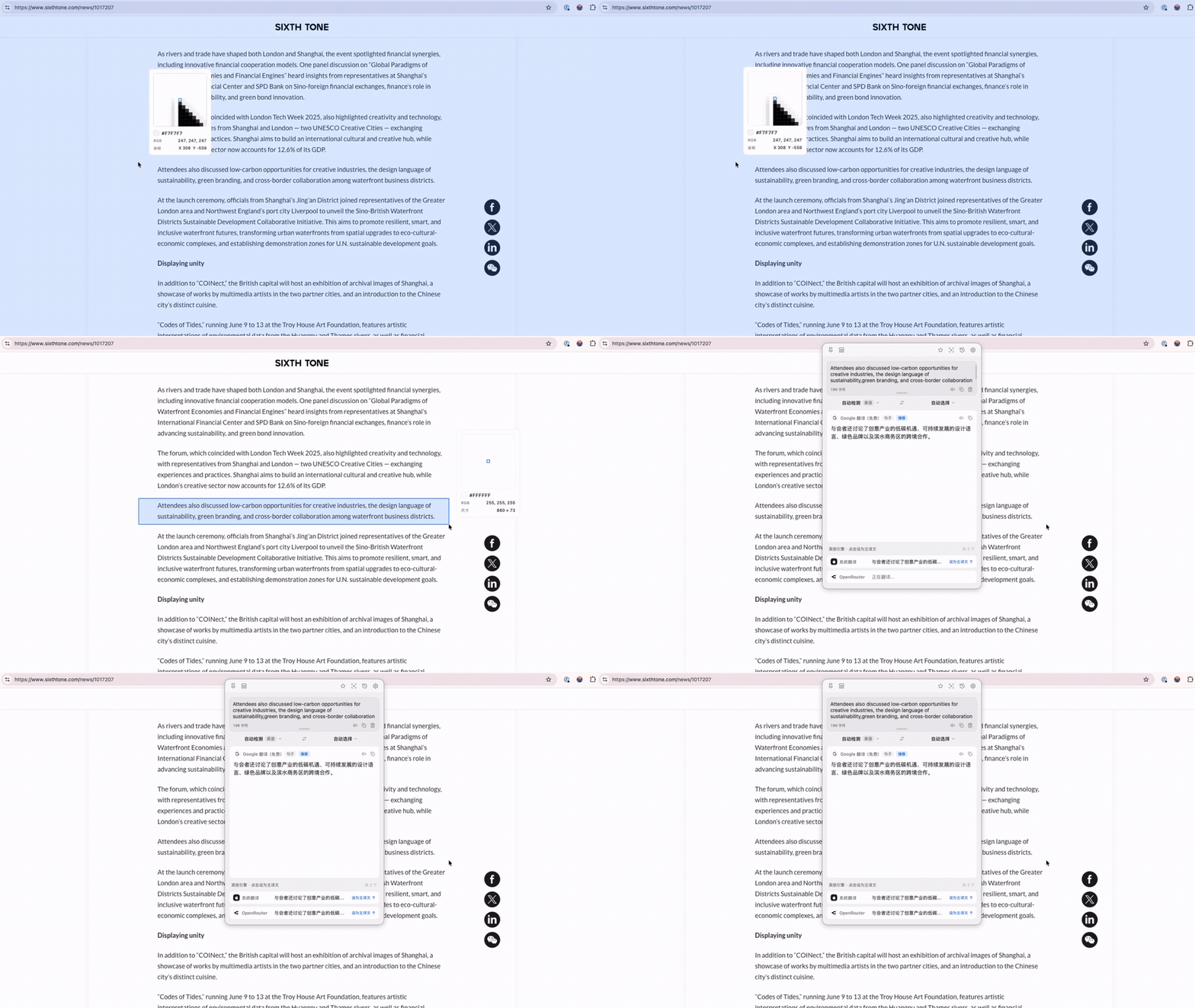
Press ⇧⌥S and draw a box. TransOne recognizes the text and puts it into the input box of the translation window, but it does not translate it.
This is how you copy text out of a picture. Once the text is in the input box you can copy it, edit it, or press Return to translate it after all.
TIP
"OCR" stands for optical character recognition, which just means turning a picture of text back into real, selectable text.
Image translation
Press ⌥T and draw a box. Instead of opening the translation window, TransOne lays a separate overlay exactly over the region you captured. Each block of text is covered with a rounded rectangle filled with the background color it sampled from the image, and the translation is drawn on top at a size that fits the space.
This looks cleanest on solid backgrounds. On a busy background the text sits on a plain color block instead.
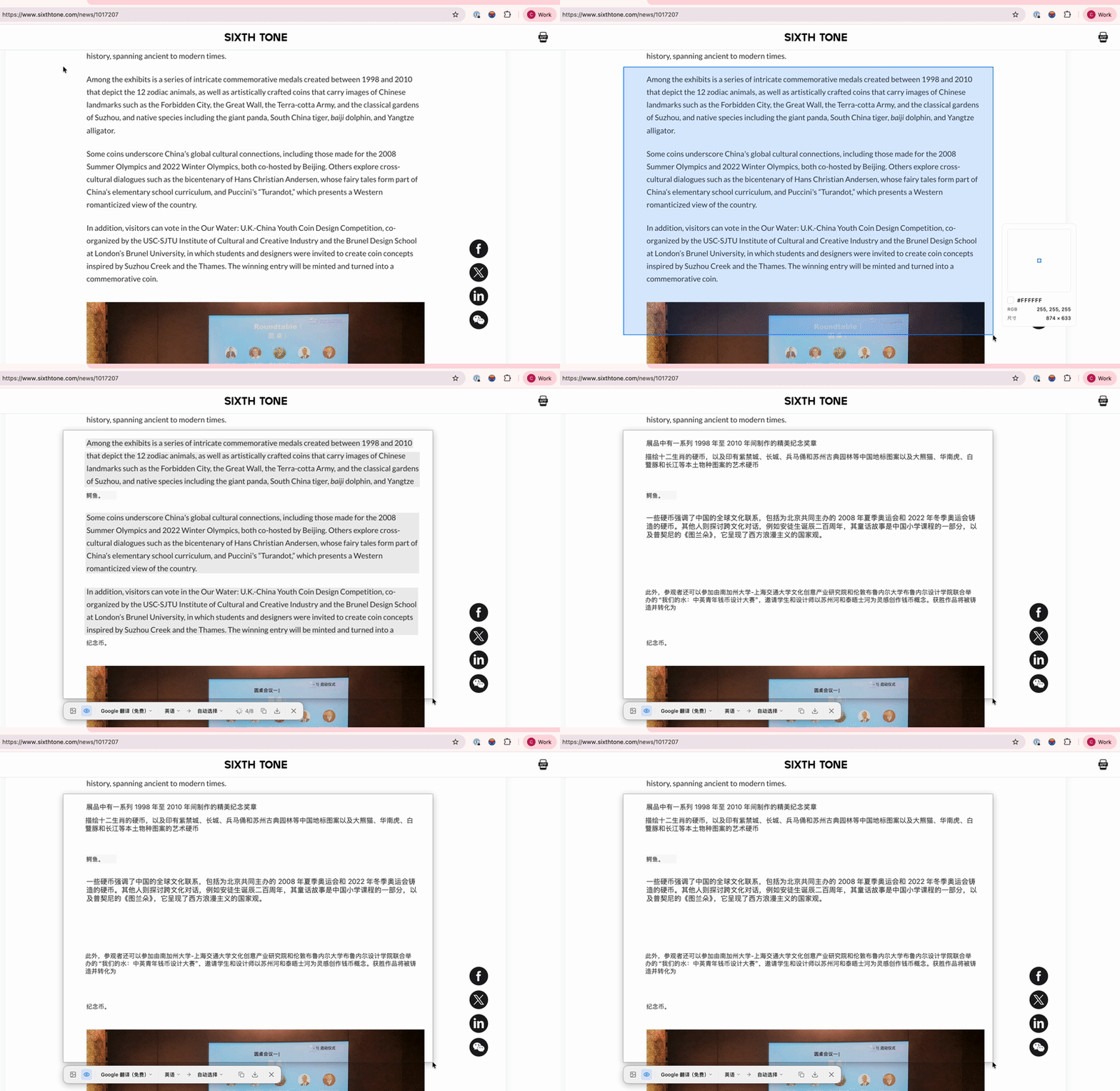
The toolbar across the overlay holds:
- An Original / Translated toggle to flip the whole overlay between the two.
- A hover preview (eye icon), on by default: hover over a block to see the other version of that text in a tooltip.
- A translation engine menu, a source language menu and a target language menu. These apply to this overlay only, not to your saved defaults.
- A progress indicator that reads n/N as the blocks are translated.
- Copy image and Save image. Save writes a PNG of exactly what you see.
- Close.
A few things worth knowing:
- Click any block to copy the text you can currently see in it.
- If a block failed to translate, click it to retry.
- If every block fails for the same reason, a card in the middle offers Retry or Configure.
- Image Translation results are not saved to your History or Favorites.
- It uses the on-device recognizer only.
- The overlay closes when you press Esc, click outside it, or switch to another app.
Your screenshots stay private
The image TransOne captures is used to read the text and is then discarded. It is not saved anywhere and never leaves your Mac. See Privacy and your data for the full picture.
Related
- Text recognition to choose which engine reads the text.
- Permissions to grant Screen Recording.
- Ways to translate for the other entry points.