
Study a language
When you are learning a language, a plain translation is not always enough. You want the version in the language you are studying, and you want to know why it is worded that way.
The study card adds exactly this. It is an extra card in the translation window that also translates the text into a third language you are learning, independent of your normal target language. So you can keep translating into your own language for everyday use, and still see the study language alongside it every time.
With explanations turned on, the card goes further: it adds notes on pronunciation, grammar, vocabulary and register (how formal or casual the wording is), written in your first language.
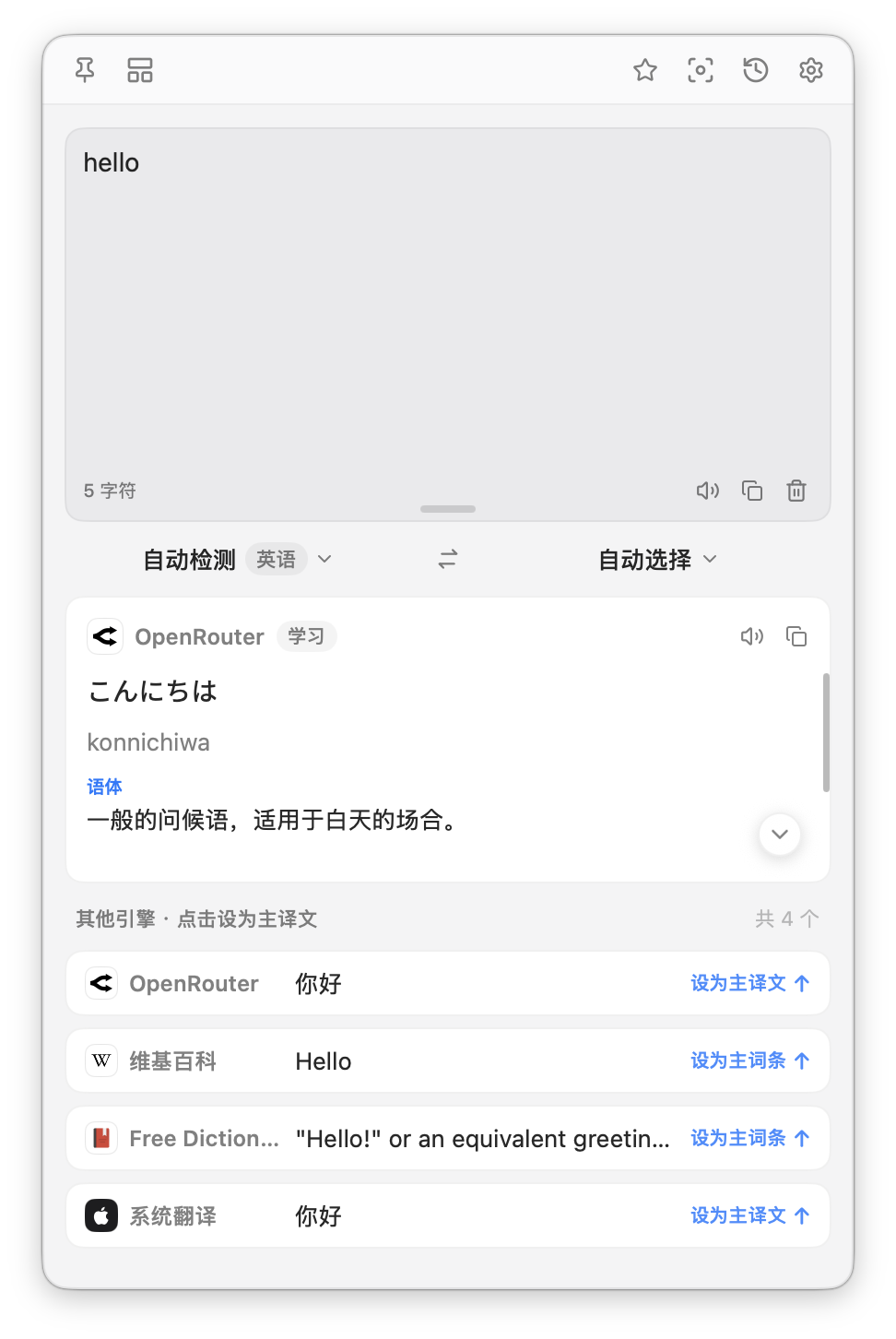
Turn it on
The study card is off by default. To turn it on:
- Open Preferences from the menu bar icon and go to Settings ▸ Translation Settings.
- Find the Study section.
- Turn on the study toggle.
- Choose your study language, the language you are learning. It defaults to Japanese, or to English if your first language is Japanese.
- Leave explanations on for the extra notes, or turn them off to see only the translated version. Explanations are on by default.
- Pick the engine that produces the card. With explanations on, only AI engines can be chosen, because only they can write the notes. See Translation engines.
When the card is skipped
The card does not always appear.
- With explanations off, it is skipped when your study language is already in play, either because the source text is in it or because your normal target language is the same as it, since there would be nothing new to show.
- With explanations on, it is skipped when the text is longer than 1000 characters, which is too long to explain well.
If the card fails for some other reason, it offers a Retry.
Related
- The menu bar and the translation window, where the card appears.
- Wordbook sync to save words you meet while studying.