
Permissions
TransOne asks for a permission only the first time you use the one feature that needs it, never on install or launch, and never by springing a system dialog on you out of nowhere.
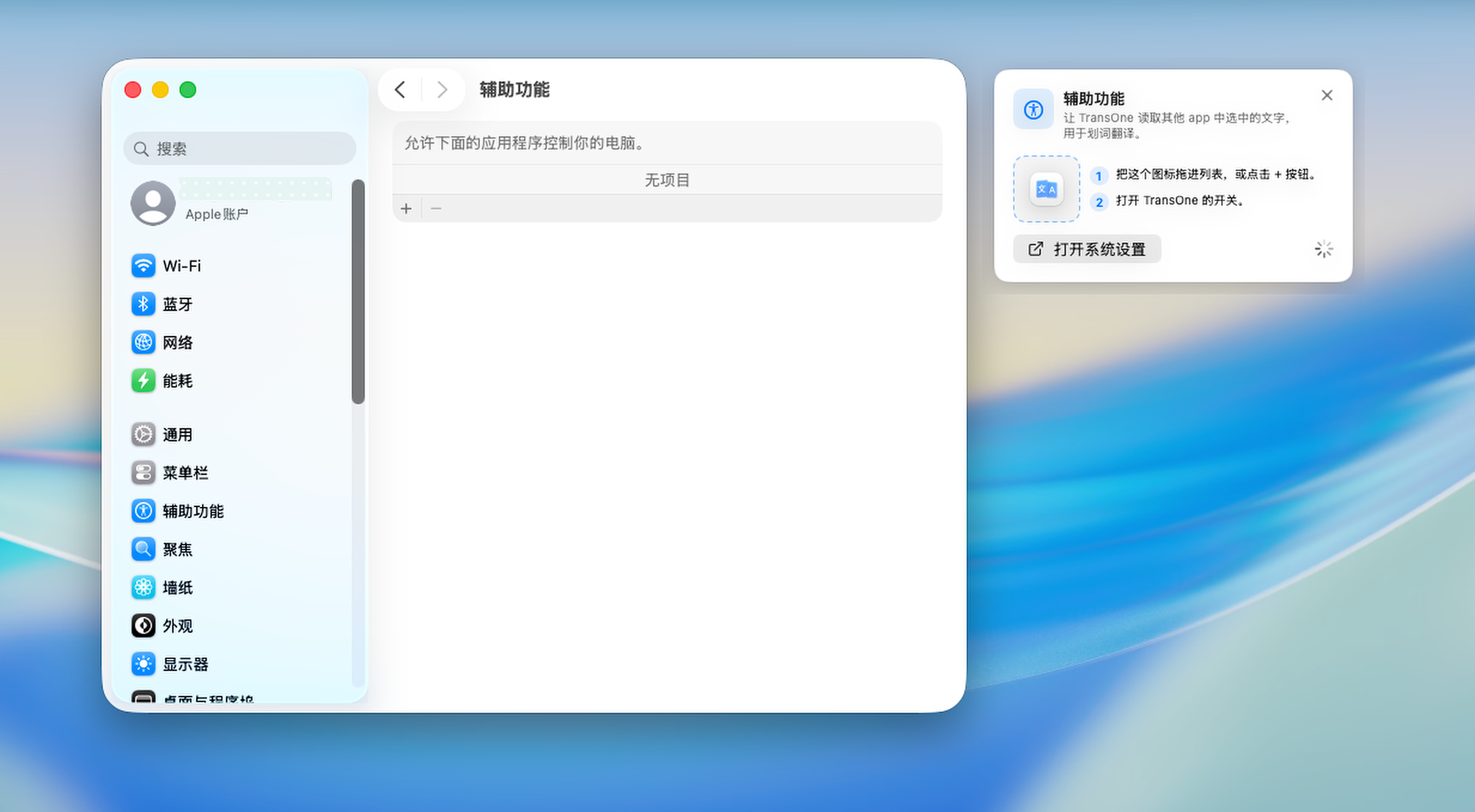
Instead, when a feature needs a permission, TransOne opens the exact page of System Settings where you grant it and floats a small guide card next to the window to walk you through it. The card has:
- a dashed box holding the app icon, which you can drag straight into the list in System Settings;
- an Open System Settings button, in case the window is not already in front;
- numbered steps to follow;
- a spinner that turns into a green check the moment the permission is on.
There are exactly two permissions, and most features need neither.
| Permission | Features that need it | What it lets TransOne do |
|---|---|---|
| Accessibility | Selection Translation ⌥D, Silent Selection Translation ⇧⌥D, Speak Selection, Polish Selection | Read the text you have selected in another app. |
| Screen Recording | Screenshot Translation ⌥S, Screenshot OCR ⇧⌥S, Image Translation ⌥T | Read the pixels in the region you draw on screen. |
Accessibility
In plain terms, Accessibility is the macOS permission that lets one app read what you have selected in another app. TransOne needs it so that pressing ⌥D can pick up the sentence you highlighted in your browser or document.
The first time you use a feature that needs it, TransOne opens System Settings ▸ Privacy & Security ▸ Accessibility and shows the guide card. To grant it:
- Turn on the TransOne switch in the Accessibility list. If TransOne is not in the list yet, drag the app icon from the guide card straight into the list, or use the plus button in System Settings to add it.
- That is all. The permission takes effect immediately, with no need to restart.
The guide card's spinner turns into a green check, and ⌥D works from then on.
You can translate with no permission at all
If you would rather not grant Accessibility, these ways work without it:
- Clipboard Translation ⌥C, translates whatever you last copied.
- Translate on double copy, press ⌘C twice quickly.
- Speak Clipboard, reads the clipboard aloud.
- PopClip, which sends selected text to TransOne through a link.
- Raycast, which runs a Quicklink that sends your selection.
Screen Recording
The screenshot features draw text out of the pixels on your screen, and macOS files reading the screen under a permission it calls Screen Recording. The name sounds broad, but TransOne only ever captures the one region you draw a box around, and only at the moment you ask. The captured image is not saved and never leaves your Mac.
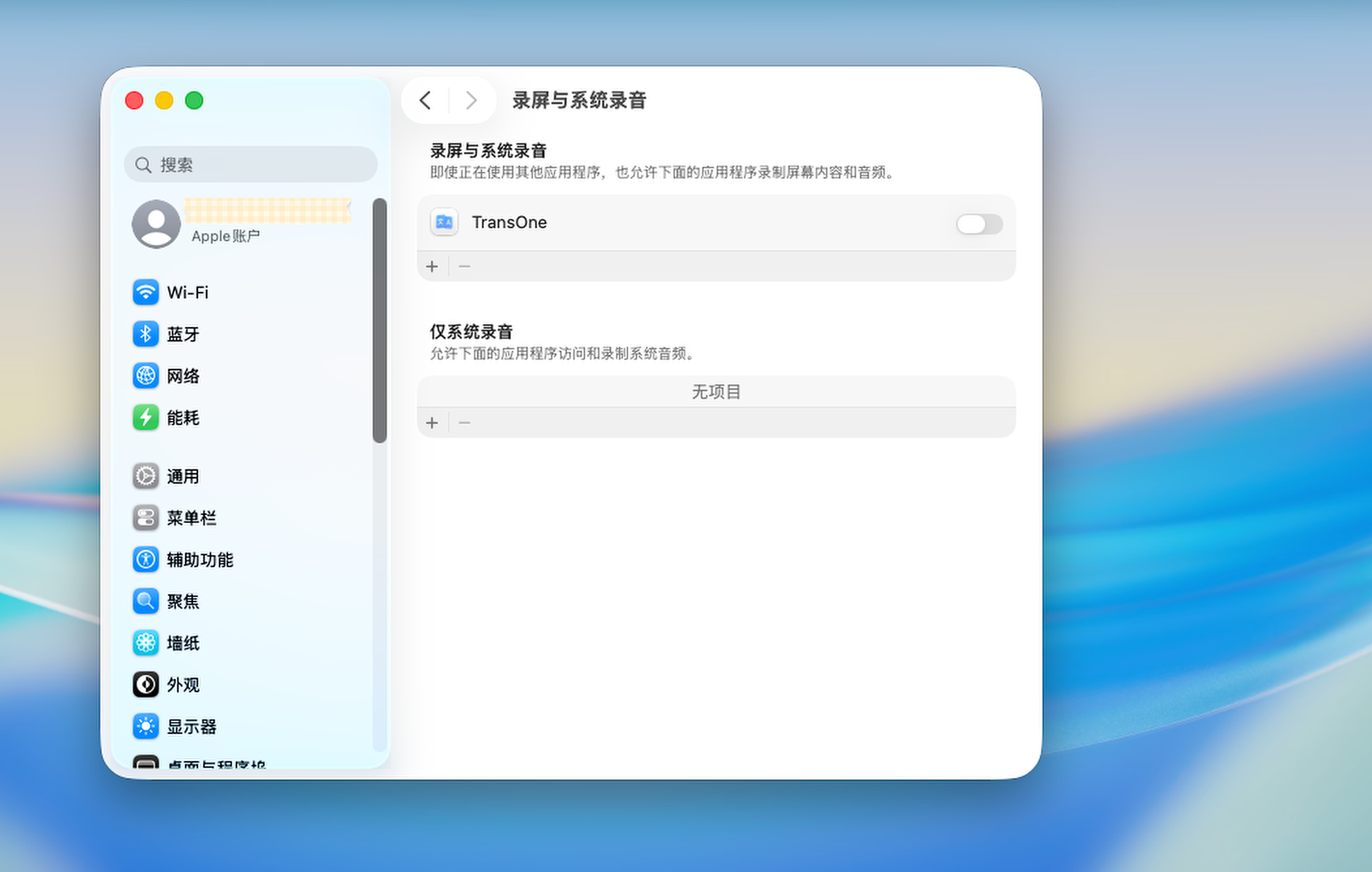
The first time you use ⌥S, ⇧⌥S or ⌥T, TransOne opens System Settings ▸ Privacy & Security ▸ Screen Recording and shows the guide card. To grant it:
- Turn on the TransOne switch in the Screen Recording list, dragging the app icon from the guide card into the list if TransOne is not there yet.
You must quit and reopen TransOne
Screen Recording only takes effect after TransOne is quit and reopened. macOS requires this; it is not something TransOne can skip. The guide card has a Quit and Reopen button that does it for you in one click. Until then the screenshot features will still report the permission as missing.
How to check or revoke a permission later
You are in control of both permissions at any time, from System Settings rather than from TransOne.
- Open the Apple menu and choose System Settings.
- Go to Privacy & Security.
- Choose Accessibility or Screen Recording.
- Turn the TransOne switch on to grant, or off to revoke.
Revoking Accessibility takes effect at once. Revoking Screen Recording, like granting it, needs TransOne to be quit and reopened before the change is complete.
What TransOne does not ask for
TransOne asks for the two permissions above and nothing else. It does not ask for your contacts, your microphone or your camera, and it reaches no files beyond the backup file you choose yourself in Settings ▸ Data. It has no reason to: the whole app is a translator, and it is sandboxed as the Mac App Store requires. For the full picture of what stays on your Mac and what leaves it, see Privacy and your data.
Still says permission missing?
If a feature keeps reporting a missing permission after you granted it, the most common cause is Screen Recording needing the quit and reopen described above. Troubleshooting covers this and the case where macOS drops TransOne from the Accessibility list after an update.