
Polish selection
Polish Selection rewrites the text you have selected in the same language. It does not translate. Select an English sentence and you get a better English sentence back. It is for tightening an email, fixing grammar, or shifting the tone of something you wrote, all without leaving the app you are writing in.
What you need first
Polish Selection needs two things:
- The Accessibility permission, so TransOne can read the text you selected in another app. See Permissions.
- An AI engine. Only AI engines can rewrite text; the machine-translation engines (DeepL, Google Translate, and so on) can translate but cannot rewrite. See Translation engines for the difference and how to add one.
Set it up
- Open Preferences from the menu bar icon.
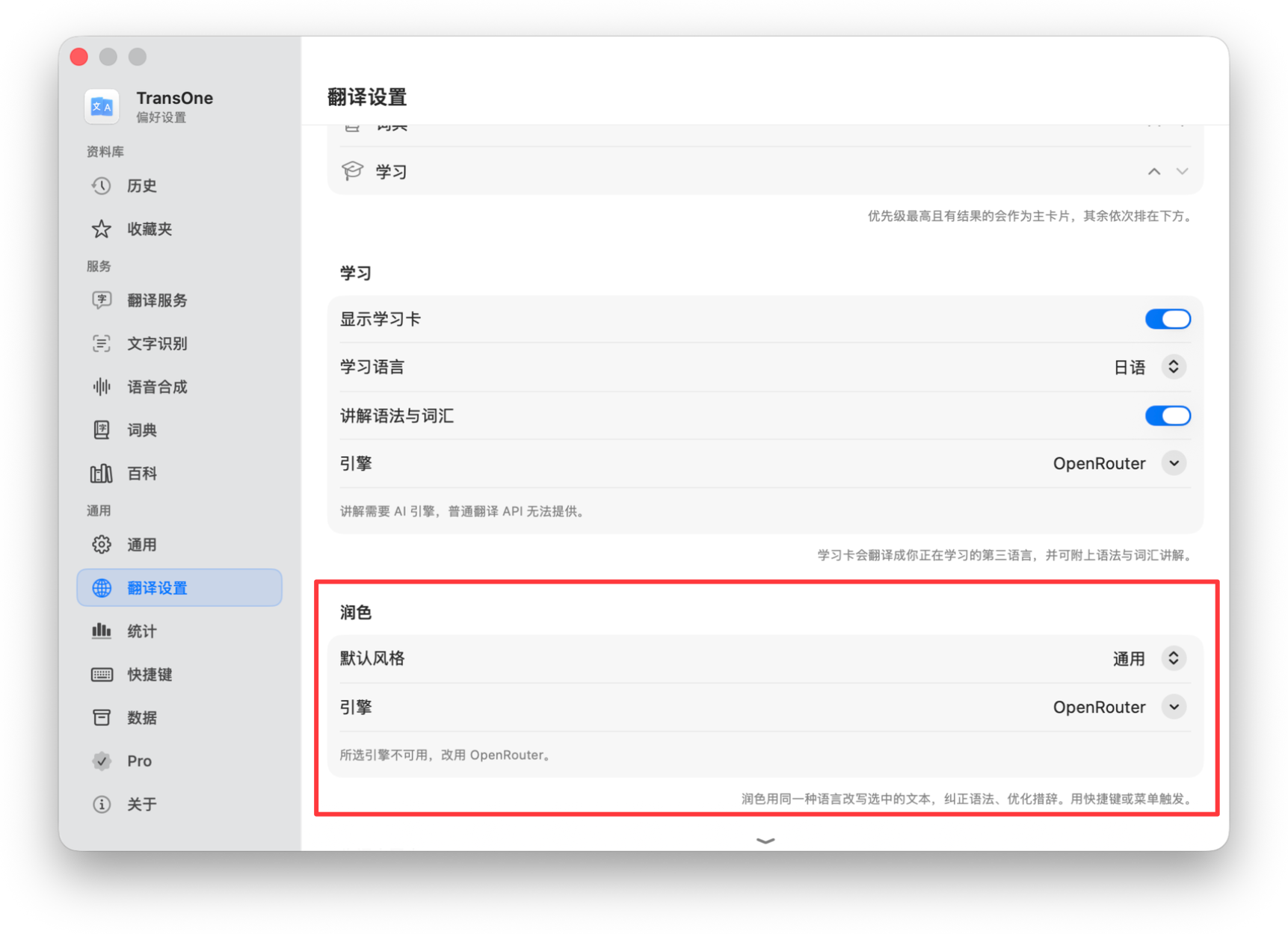
- Go to Settings ▸ Translation Settings and find the Polish section.
- Choose a Default Style (see the table below). General is the default.
- Choose an Engine. Only AI engines appear in this menu.
Give it a shortcut
Polish Selection ships with no keyboard shortcut, so nothing happens until you give it one or run it from the menu.
- Record a shortcut: open Settings ▸ Shortcuts, find the Polish Selection row, click its recorder and press the keys you want. See Keyboard shortcuts.
- Or use the menu: click the TransOne icon in the menu bar and choose Polish Selection.
Use it
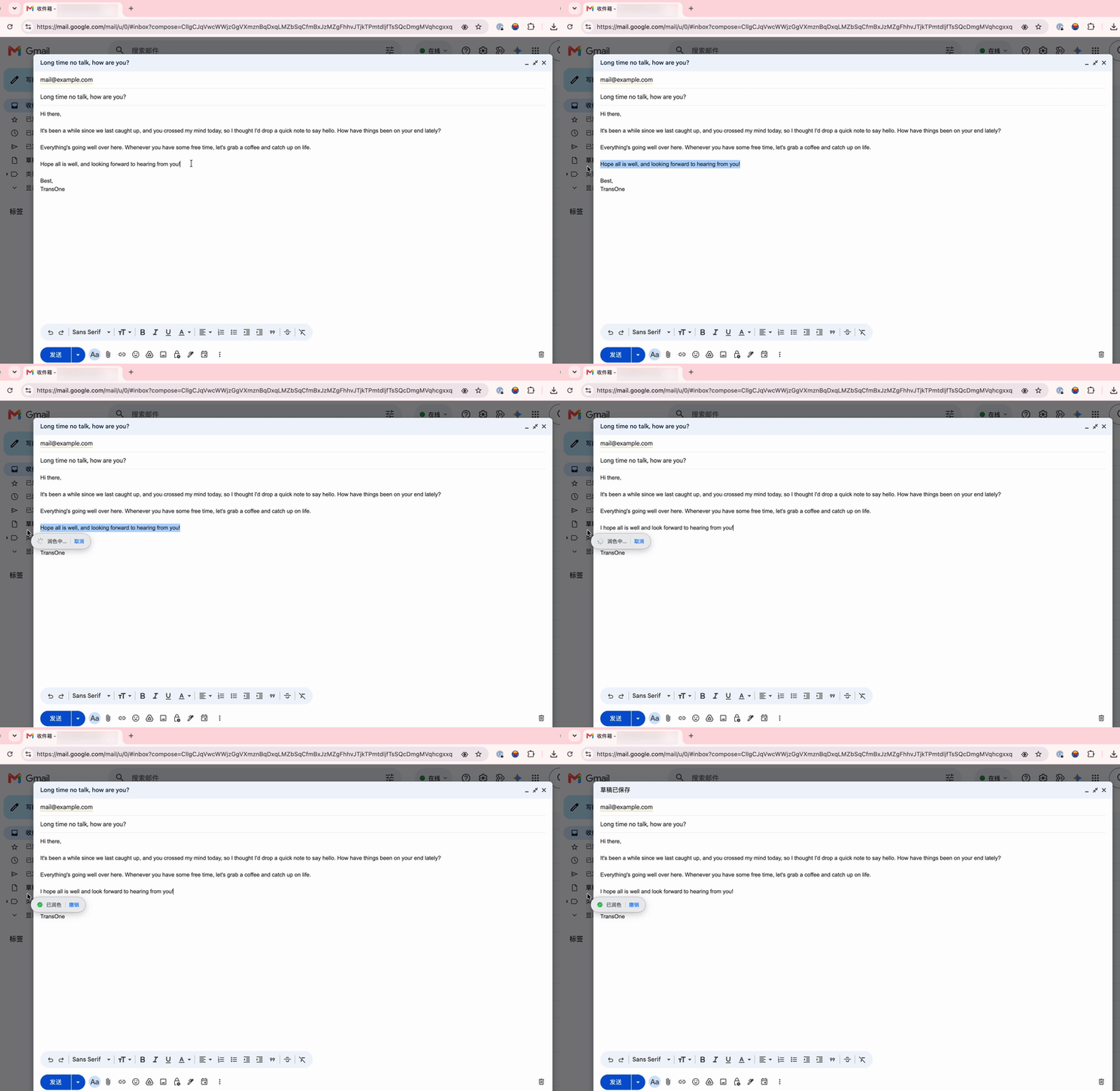
- Select the text you want to improve, in any app.
- Trigger Polish Selection with your shortcut, or from the menu bar.
- TransOne rewrites the text and pastes the new version over your selection.
Undo if you change your mind
Right after it finishes, a small indicator offers Undo for 5 seconds. Hovering over it pauses the countdown, so you have time to read the result. Undo is a normal ⌘Z, so you can also just press that.
TIP
The rewrite lands right where your text was, replacing it. If you liked the original better, Undo brings it straight back.
Good to know
- Text longer than 2000 characters is skipped. Polish is meant for a sentence or a paragraph, not a whole document.
- If the text already reads well, TransOne tells you so and changes nothing.
The six styles
Set a default style in settings. Each one tells the AI engine what kind of rewrite you want.
| Style | What it does | When to use it |
|---|---|---|
| General | A balanced, all-round tidy-up. | Everyday writing, when you are not aiming for any particular tone. |
| Formal | A more formal, professional wording. | Work emails, official messages, anything for a wider or senior audience. |
| Casual | A relaxed, everyday wording. | Messages to friends, chat, informal notes. |
| Concise | A shorter, tighter version that keeps the meaning. | Cutting a rambling sentence down, trimming for length. |
| Grammar only | Fixes grammar and spelling, leaving your wording alone. | When you like what you wrote and only want the mistakes fixed. |
| Custom | A rewrite that follows your own instruction. | When none of the presets fit, for example "make it sound friendlier" or "turn this into bullet points". |
Writing a custom prompt
Choosing Custom reveals a Custom Prompt field. Whatever you write there becomes the instruction for how the text is rewritten. Everything around it stays fixed: the rewrite always keeps the original language and meaning, and only the rewritten text comes back, so your prompt cannot make Polish translate or answer the text.
- Write the instruction plainly, for example "Make it sound friendlier" or "Rewrite as short bullet points".
- Use the
{language}variable where you need to name the text's own language. TransOne fills it in with the detected language before sending the prompt. - Leaving the field empty falls back to a general tidy-up.
Related
- Translation engines to add the AI engine Polish needs.
- Keyboard shortcuts to give Polish Selection a shortcut.