
Local and offline models
Some engines run entirely on your own Mac. Your text never leaves the machine, there is no key to get, no bill to pay, and they keep working with no internet connection. If privacy or cost is your main concern, these are the ones to reach for. See also Privacy and your data.
There are three offline options:
- System (On-Device): Apple's own translator, built into macOS 15 and later. It is not an AI model, it only translates, but it is fast and needs no setup beyond downloading Apple's language packs on demand.
- Ollama: a free app that runs open AI models on your Mac.
- LM Studio: a free app that runs open AI models on your Mac.
Ollama and LM Studio are AI engines, so as well as translating they can power Polish Selection and the dictionary's AI definitions. To use either, you first install that app and get a model running in it, then add the matching engine in TransOne.
TIP
The quality you get from a local model depends on which model you run and how capable your Mac is. A bigger model translates better but needs more memory and runs slower. Try a small model first.
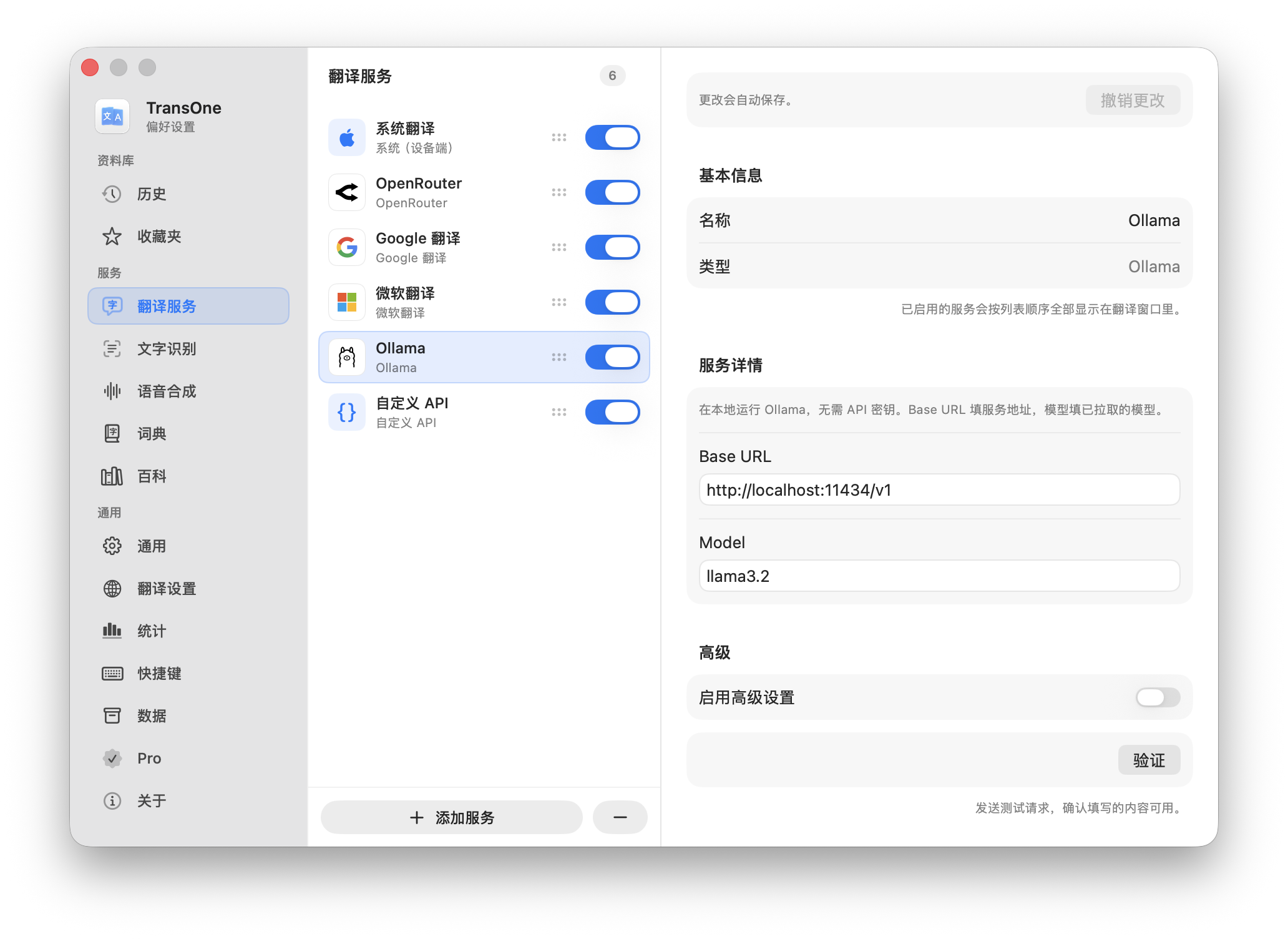
Ollama
Terminal is the app that lets you type commands to your Mac. It comes with macOS; find it in Applications ▸ Utilities, or search for it with Spotlight.
- Download and install Ollama from its website, then open it.
- Open Terminal and run this command to download a model:You can pull any model Ollama offers;
ollama pull llama3.2llama3.2is a good starting point. - In TransOne, open Preferences from the menu bar icon (⌘,) and go to Settings ▸ Translation Services.
- Click Add Service and choose Ollama.
- Leave the Base URL as
http://localhost:11434/v1. - Set Model to the model you pulled (for example
llama3.2). - Turn the engine on. No key is needed.
LM Studio
- Download and install LM Studio from its website, then open it.
- In LM Studio, download and load a model.
- Start LM Studio's local server (its Developer or Local Server screen).
- In TransOne, open Preferences from the menu bar icon (⌘,) and go to Settings ▸ Translation Services.
- Click Add Service and choose LM Studio.
- Leave the Base URL as
http://localhost:1234/v1. - Set Model to the model you loaded.
- Turn the engine on. No key is needed.
If it cannot connect
If a local engine returns an error, check three things:
- The app (Ollama or LM Studio) is open and running.
- Its local server has been started. Ollama runs its server automatically once the app is open; in LM Studio you start the server yourself.
- The Base URL and Model in TransOne match the app. The model name must be one you have actually pulled or loaded.
Still stuck? See Troubleshooting.
Next
- Translation engines: the full list of engines and what each needs.
- Custom translation API: connect a self-hosted service that is not on the list.