
Appearance and themes
TransOne's look comes in two independent layers: the app-wide Light or Dark theme, and the translation window's own color or background image.
Open the Appearance settings
Open Preferences… (⌘,) and go to General. The Appearance section is near the top, below Language.
Theme: Light, Dark or System
Theme sets the whole app's appearance:
- Light and Dark pin it.
- System follows whatever your Mac is set to, switching with it.
This is the only appearance setting that affects the Settings window too. Everything below it colors the translation window alone.
Window Color
Window Color tints the translation window's surface and input fields with a soft, appearance-aware wash. There are six choices:
- Default: the neutral near-white (or near-black in Dark) surface, so an untouched window looks exactly as it always has.
- Blue, Green, Purple, Rose and Sand: a light tint of that hue in Light mode and a deep, quiet version of it in Dark mode.
Every tint carries both a light and a dark variant, so the color follows your Theme setting automatically. It colors only the translation window; the results cards stay neutral so text keeps its contrast.
A background image
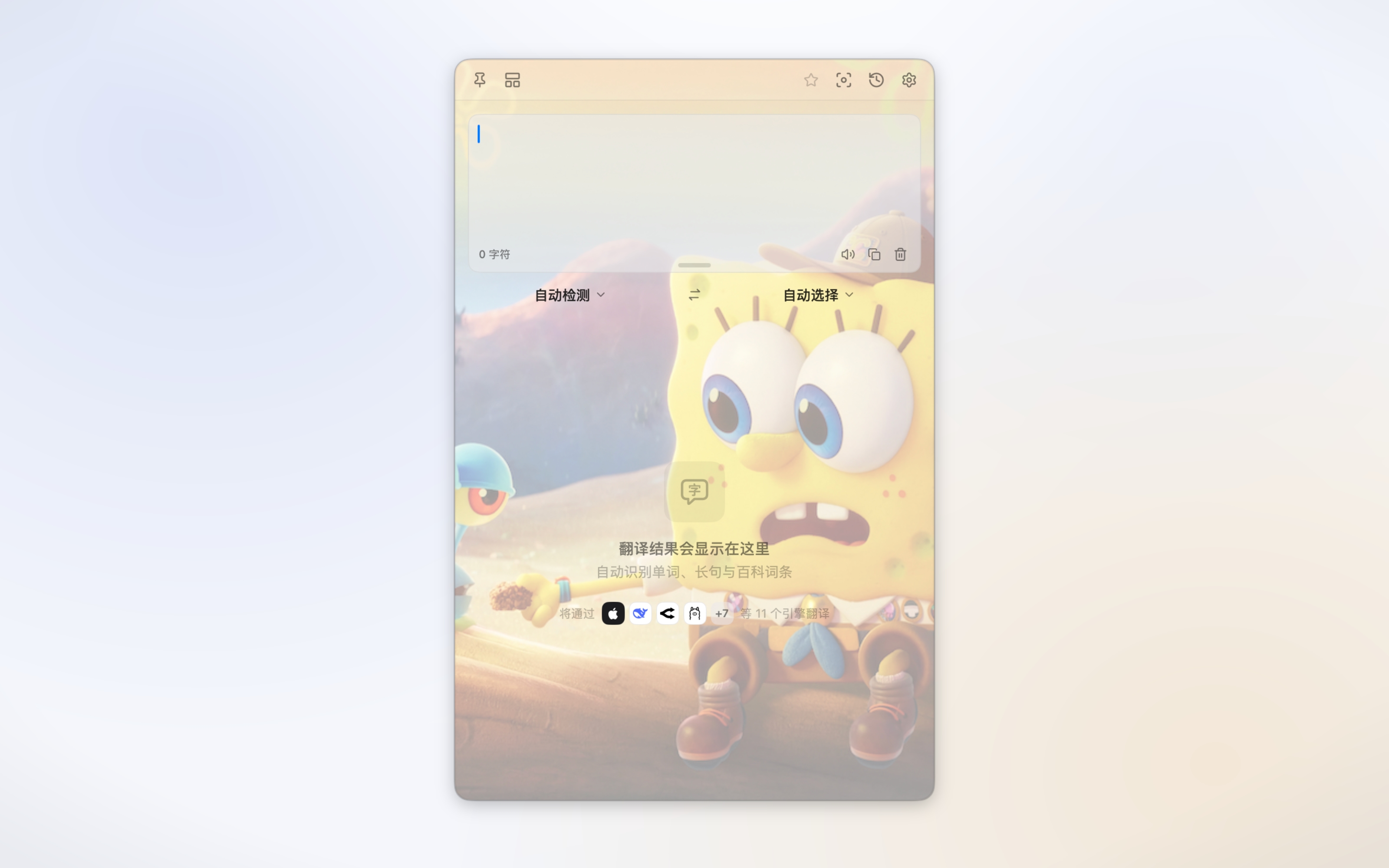
Instead of a color, you can drop your own image behind the window. In the Background Image row, click Choose Image… and pick a picture. It fills the whole translation window, showing through the toolbar, the input area and the gaps between cards.
A background image and a Window Color are mutually exclusive: choosing an image switches the window to it, and the tint swatches deselect. Once an image is uploaded it stays available as a thumbnail chip, so you can switch back to a tint and return to the image later without re-choosing the file. Use Replace… to swap in a different picture, or Remove to delete it and fall back to the neutral surface.
PNG, JPEG, HEIC and TIFF are supported, up to 10 MB. TransOne copies the image into its own storage, so moving or deleting the original file afterward is fine.
When an image is set, three more controls appear below the row.
Card Opacity
How solid the result cards and input field sit over the image. Lower it to let more of the picture show through; raise it for a more solid backing. It stops at a floor so text never becomes hard to read.
Background Blur
How much to soften the image, from none up to a strong blur. A little blur keeps a busy photo from competing with the text.
Preview
A small live mock of the translation window, right in the settings. It updates as you drag the sliders or switch images, so you can see the result without opening the real window.
Text stays legible automatically
Over a background image, TransOne lays down an adaptive veil sized to the image's brightness, and flips it (light over dark images, dark over light ones) with your Theme. That, plus the Card Opacity floor, keeps the translation readable over any picture you choose.
What changes and what does not
The Window Color and background image change only the translation window. The Settings window, the menu bar menu and the menu bar icon are unaffected. To change the menu bar icon, see Menu Bar Icon in Settings explained.